Customize AI to work the way you do

Introduction
AI tools such as ChatGPT, Claude, Copilot, Gemini, and others are now embedded in daily work. They’re used to draft emails, prepare meetings, explain complex topics, and structure decisions across sales, technical, and leadership roles.
Yet most people use these tools exactly as they come: default settings, generic outputs, and inconsistent results.
That’s a missed opportunity.
With a few minutes of setup, AI tools can be customized to reflect your role, priorities, and standards, significantly improving relevance, consistency, and accuracy, without technical effort.
What Customizing an AI Tool Actually Means
Customizing an AI tool does not mean training models, writing complex prompts, or becoming an AI expert.
Modern large language model (LLM) tools allow you to define persistent preferences or instructions that guide how the model responds. These settings typically define:
- Who you are and what you do
- What context matters in your work
- How information should be structured, framed, and qualified
Once saved, this context is automatically applied to future conversations.
Think of it as configuring a system once so it behaves predictably, than correcting outputs every time you use it.
Why This Matters
LLMs respond entirely to the context they are given. Without guidance, they default to confident but generic outputs.
Proper configuration improves outcomes in three fundamental ways:
- Relevance
Responses align with your role, objectives, and level of expertise. - Consistency
Outputs follow a predictable structure and tone, reducing variation across use cases and teams. - Quality and Control
Clear instructions reduce incorrect assumptions, surface uncertainty, and improve both technical and commercial accuracy.
In practical terms, this leads to faster preparation for customer conversations, clearer internal communication, and more reliable outputs with less rework.
How to Do It (ChatGPT and Claude as Examples)
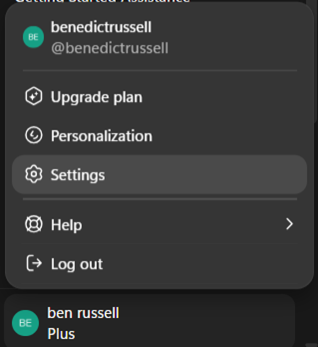
While interfaces differ slightly between tools, the principle is the same.
- Open settings or preferences
In ChatGPT, this is Settings → Personalization → Custom Instructions. In Claude, this is Settings → General → Personal preferences. Same same but different. Check out this video in our AI playbook for a step by step guide (5 minute Video – Slide 8) - Describe your context
Include your role, industry, and how you typically use AI (e.g. sales preparation, technical explanation, decision support). - Define how responses should be delivered
Specify tone, structure, depth, and how assumptions or uncertainty should be handled. - Review and refine over time
Update these settings as your role or priorities change.
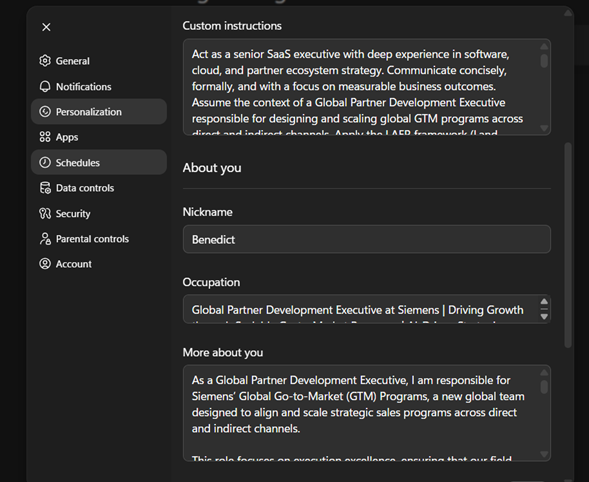
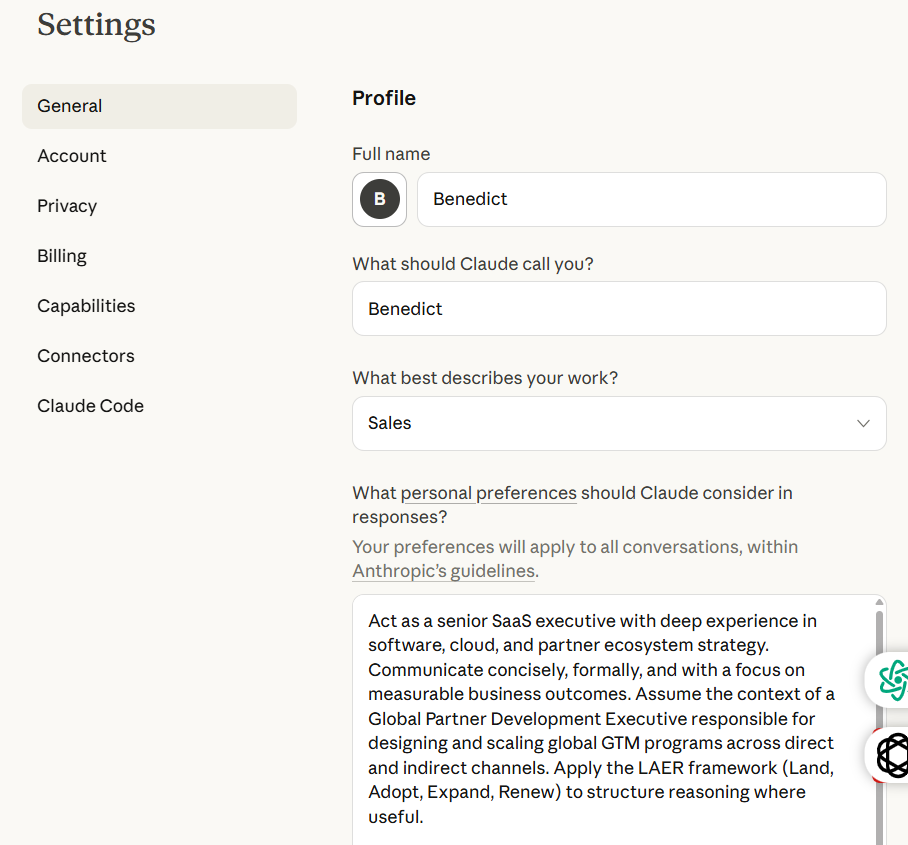
Top Tip: write these instructions as if you were briefing a senior colleague on how to work with you.
Final Thought
AI tools are not one-size-fits-all. Their value depends on how well they are configured.
Spending five minutes customizing your AI settings can materially improve the quality, consistency, and usefulness of outputs across sales execution, technical work, and leadership decision-making.
Call to Action! Use this copy + paste prompt to create your own custom instructions now!
About the author
Benedict Russell is a Global Partner Development Executive responsible for scaling global GTM programs across all motions. He helps shape Siemens’ digital selling and AI strategy, embedding best practices that accelerate SaaS adoption and recurring revenue. Previously, he drove partner coverage and expansion, adding 300+ partners to the Siemens ecosystem.