Designcenter NX | Tips & Tricks | Electrical Routing
Electrical routing is an application within Designcenter NX™ that is specifically designed to help you create, route, and manage electrical harnesses and wiring within your product designs. It streamlines the process of integrating electrical components, ensuring accuracy and reducing design time, ultimately leading to more efficient and reliable products.
Watch the video below to see some helpful tips for getting the most from Electrical Routing, or keep scrolling if you’d prefer to read the updates.
Leveraging Designcenter NX’s re-use library
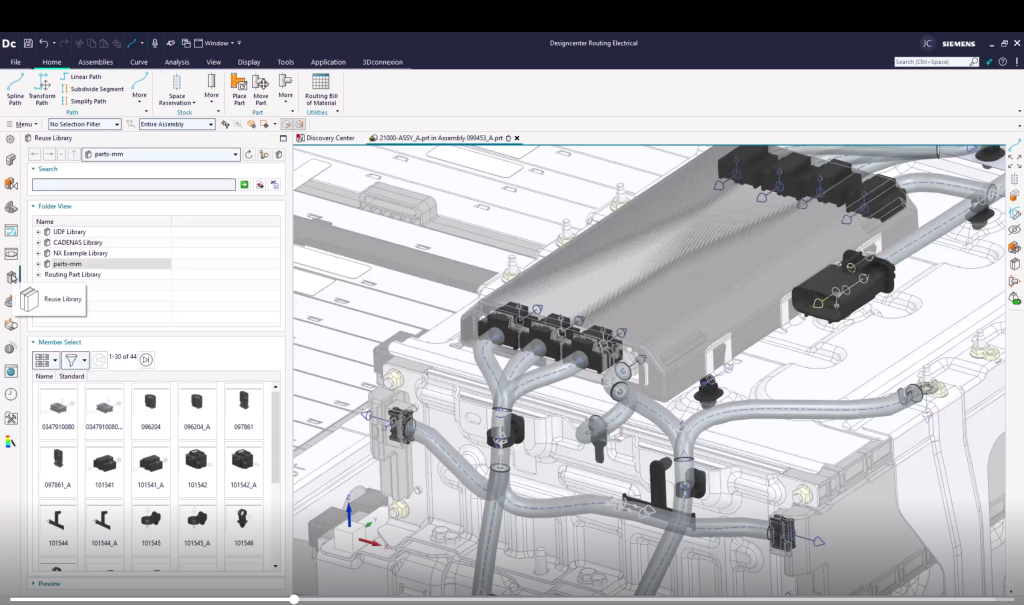
To begin, we’re going to look at finishing the electrical system on the assembly. Before we do anything, the first step we must take is to activate the electrical routing application. This will provide you access to the most important tools and navigators for your workflows. From here, you can leverage the Designcenter NX reuse library. Designcenter already has a variety of electrical parts available for you to use upon install. Using the reuse library, you can take advantage of this, saving valuable time and effort while ensuring consistent results.
Identifying what you need
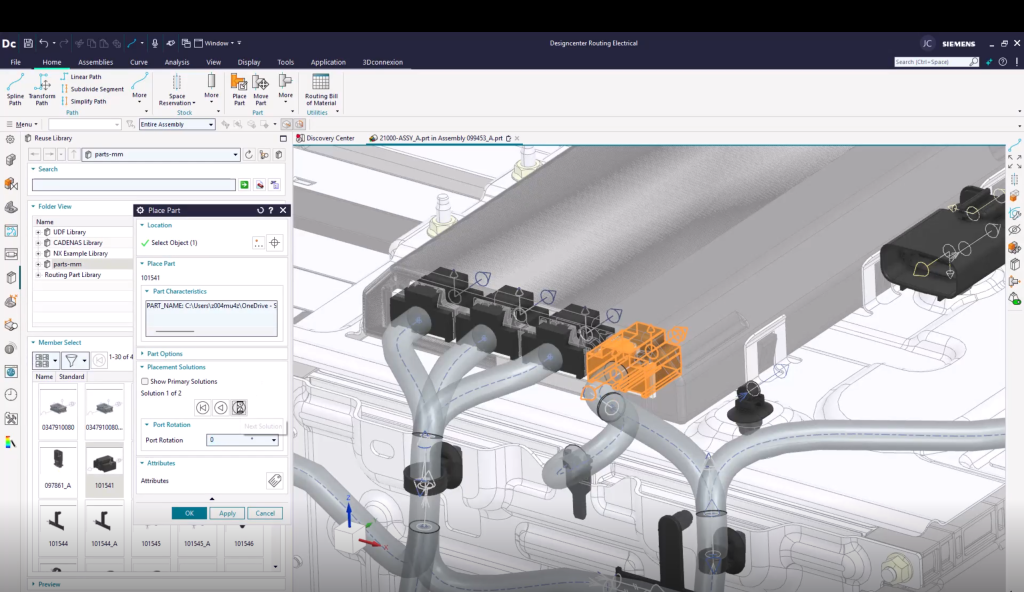
Imagine you want to place an electrical connector. Navigating through the reuse library, you can use images or descriptions to identify a connector that will fit your design needs. Once chosen, you can select an object location in your display window to place the item. Cycling through placement options, ensures that your new part is in the proper orientation, and then you can select ‘Apply’. You may also note that if you need to rotate your port to fit your design, that is also an option here. As you continue, you can use these same methods to place your other missing connector. Using the search option in the reuse library can speed up this process if you already know the name of the parts you’re looking for.
The path of your wiring
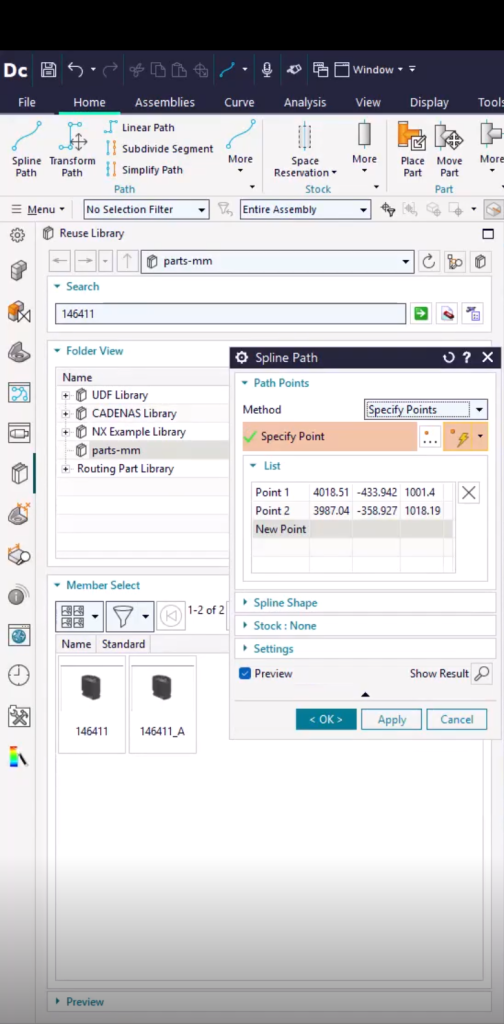
With your connectors now placed, we can move on to setting up the path your wiring will follow. To do this, we’re going to start off by selecting Spline Path. You are first prompted to specify the points of your spline, which in our scenario can simply be our port locations. After that, we are going to begin to add slack into our spline.
The benefits of adding slack
hile our spline automatically defines the minimum required length, adding slack acknowledges the real-world complexities of manufacturing, installation, and operation. We can finish our example by applying a space reservation to indicate where a design is intended to be occupied by electrical elements, even if those elements aren’t fully defined or placed yet. We have a number of stock options, but for consistency’s sake in this instance, let’s match the rest of the design.
To wrap up
In this example we have covered the basics of working in electrical routing in Designcenter. We started off by exploring the reuse library and investigating how it can be used to place new parts. After that, we looked at adding a spline path and slack for our electrical wiring to follow. And finally, we finished up by defining space reservations to designate where electrical components would be placed downstream. Hopefully you’ve found this helpful and can apply this to your own workflow!
Continue your journey with Designcenter NX