How to use Calibre parasitic extraction tools: a step-by-step guide
By Karen Chow
In the integrated circuit (IC) design world, achieving high-performance and reliable chips hinges on accurately understanding and mitigating parasitic effects. These unintended resistances, capacitances and inductances can significantly impact circuit behavior, especially at advanced technology nodes. This step-by-step guide is designed to empower IC designers like you to master the Calibre parasitic extraction (PEX) tools from Siemens EDA, ensuring your simulations precisely reflect real-world silicon performance.
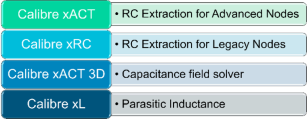
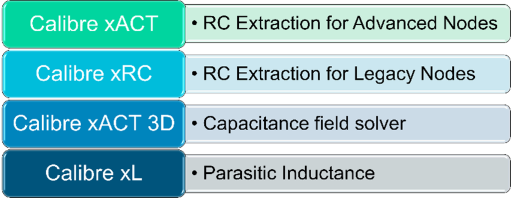
Calibre offers a robust suite of PEX tools, each tailored for specific needs: Calibre xACT for advanced nodes, Calibre xRC for legacy nodes, and powerful add-ons like Calibre xACT 3D for enhanced capacitance accuracy and Calibre xL for parasitic inductance. Before we dive into the practical steps, let’s briefly understand what each of these essential tools brings to your design workflow.
What is Calibre xACT?
Calibre xACT is a parasitic resistance (R) and capacitance (C) extraction tool developed by Siemens for advanced node integrated circuit (IC) design verification. It helps engineers model and simulate the electrical behavior of complex chip layouts by modeling parasitic elements.
What is Calibre xRC?
Calibre xRC is an RC parasitic extraction tool for legacy nodes. It identifies unintended electrical components (parasitics) that arise due to physical layout—critical for accurate post-layout simulation.
What is Calibre xACT 3D?
Calibre xACT 3D is a 3D capacitance field solver. It replaces the C in Calibre xRC or Calibre xACT with a more accurate capacitance value. It uses a fast, integrated 3D field solver to deliver reference-level accuracy, especially important for advanced node and 3D IC designs.
What is Calibre xL?
Calibre xL calculates parasitic inductance. It uses either partial or loop inductance and integrates the parasitic inductance with the RC netlist from both Calibre xRC and Calibre xACT.
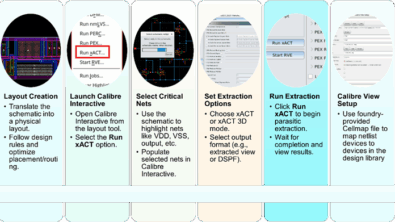
Step-by-step tutorial on using Calibre parasitic extraction
Now that we have a clear understanding of each Calibre PEX tool and its specific role, let’s dive into the practical application. The following step-by-step tutorial will guide you through a typical Calibre PEX workflow, from initial setup to generating your final parasitic netlist. We’ll cover:
- Downloading rule decks: Obtaining the necessary files from your foundry.
- Starting Calibre Interactive: Launching the tool from your design environment.
- Setting up rules: Configuring the SVRF rule files.
- Setting up inputs: Specifying your layout and schematic sources.
- Setting up outputs: Defining extraction modes, accuracy, and types.
- Setting up netlist format: Choosing the desired output format for simulation.
- Setting up reduction options: Optimizing the netlist for simulation performance.
- Running xACT: Executing the extraction process.
Let’s get started!
Step 1: Download the rule decks from the foundry website
In your foundry portal (for example, TSMC, UMC, GlobalFoundries), look for the Calibre xACT or Calibre xRC rule file, and download them. Legacy nodes like TSMC 40 nm will be qualified with Calibre xRC, whereas advanced nodes like GlobalFoundries 12 nm will be qualified with Calibre xACT.
Also download the Calibre nmLVS rule deck, which contains all of the device declarations, such as the definitions of the nmos and pmos devices.
The foundry may have a top-level rule file that will include both the Calibre LVS deck and the Calibre xACT/xRC deck. In our following example, a text file called pex.rul will include both the LVS deck and the xRC deck.
Step 2: Start Calibre Interactive from the design environment
In all popular design environments, there will be a Calibre menu in the layout window.
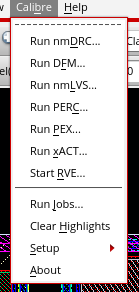
If you have a Calibre xRC deck (legacy node), then select Run PEX. If you have a Calibre xACT deck (advanced node), then select Run xACT. In our example, we will use Run xACT.
This will open up Calibre Interactive. There are Pages listed on the left-hand side. Go to each page one by one, starting at the top with the Rules page.
Step 3: Set up rules
Here, where it says rules file, put the top level SVRF rule file that includes the LVS deck and the Calibre xRC/xACT deck.
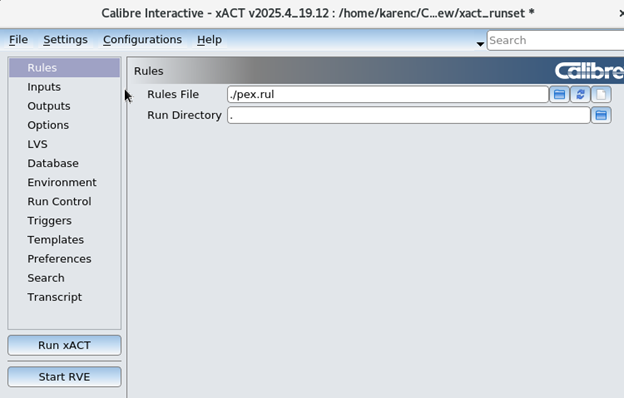
In this generic pex.rul, the file contains:
- include lvs.rul
- include rules.C
- include rules.R
- include rules.xact
The top-level rule deck will be supplied by your foundry and have different netlisting and reduction settings in it.
Step 4: Set up inputs
In the Inputs page, select your Layout Path. This is the GDS file, if you streamed out the layout into GDS format. If you have not previously done a stream out, or if you made changes to your layout, then select the “Export from layout viewer” button.
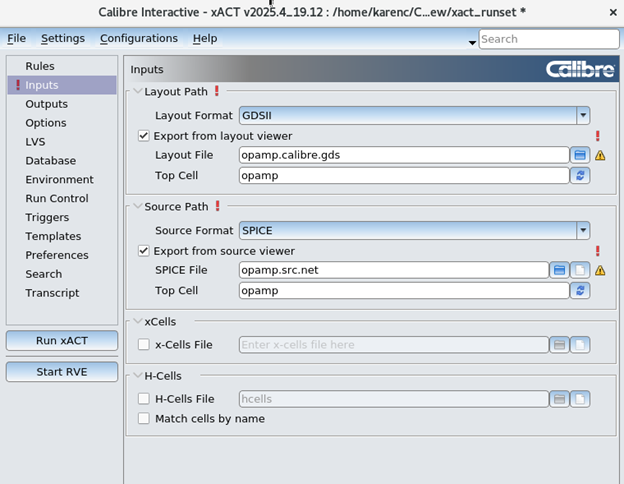
For Source Path, enter the name of the schematic file. If you have previously created a netlist from your schematic, you can enter the name here. If you have not previously created one, or have made changes to your schematic, then select the “Export from source viewer” button.
xCells and H-Cells are usually not specified since most extractions are performed flat.
Step 5: Set up outputs
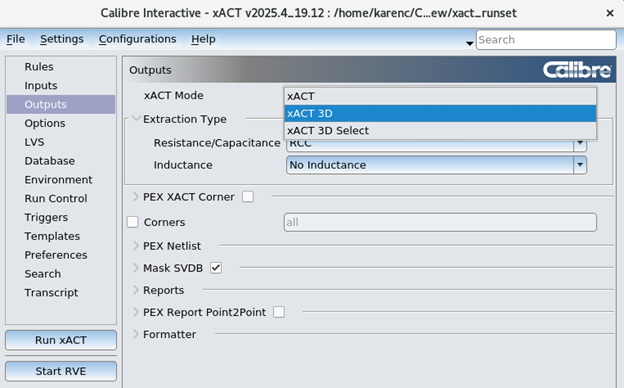
In the Outputs page, the first option is xACT Mode. The choices are as follows:
- xACT selects Calibre xACT
- xACT 3D will use the 3D field solver for capacitance xACT for capacitance
- xACT 3D Select will allow for named nets to go to the field solver
- In this case, we will select xACT 3D
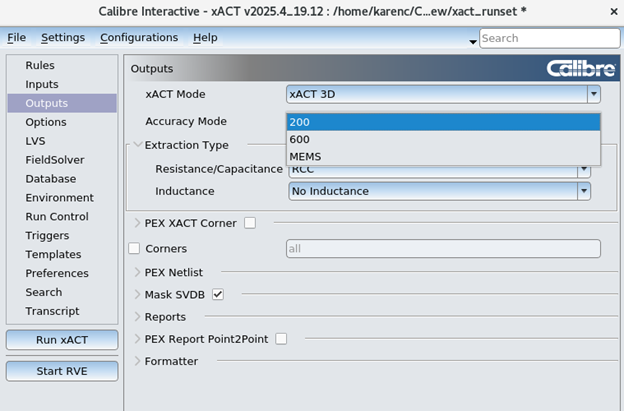
The next option is Accuracy Mode. Calibre xACT 3D has three different accuracy modes:
- 200: This is the default accuracy mode. This is the fastest mode, because the grid lines are the most sparse
- 600: This is the high accuracy mode. This is a slower mode, with a denser grid.
- MEMS: This is the highest accuracy mode, useful for designs with very small coupling values.
In this case, we will select mode 200 for faster performance.
The next option is Extraction Type where you choose the combinations of resistance, capacitance and inductance to be extracted.
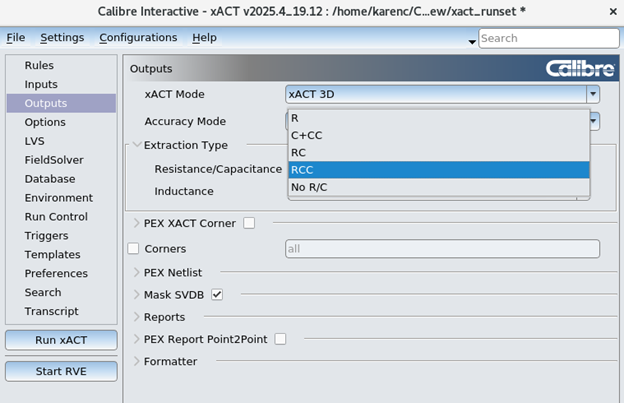
The extraction type choices are:
- R: Only parasitic resistance
- C+CC: Parasitic capacitance, and coupling capacitance
- RC: Resistance and capacitance to ground
- RCC: Resistance, capacitance to ground, and coupling capacitance
- No R/C: No parasitics. In this case, the devices will still be extracted
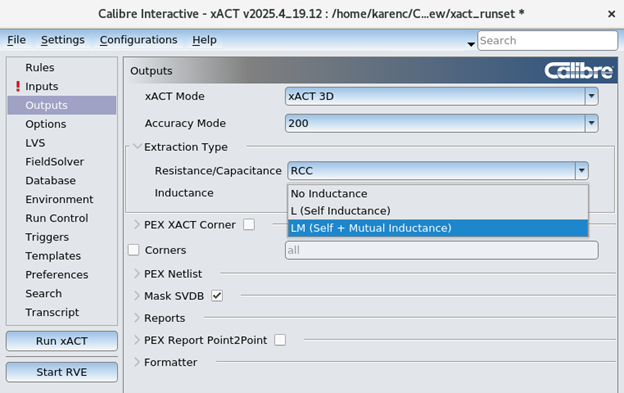
Next, you can select whether you want Inductance or not. The options are no inductance, self inductance, or self and mutual inductance. In this case, we will select LM.
Note that both Calibre xACT 3D and Calibre xL require additional licenses on top of Calibre xACT or Calibre xRC.
Step 6: Set up netlist format
Next, we select the output netlist format. Calibre xACT supports the following netlist formats:
- Hspice
- DSPF
- SPEF
- Spectre
- Eldo
- Calibreview (Virtuoso extracted view)
- Spice
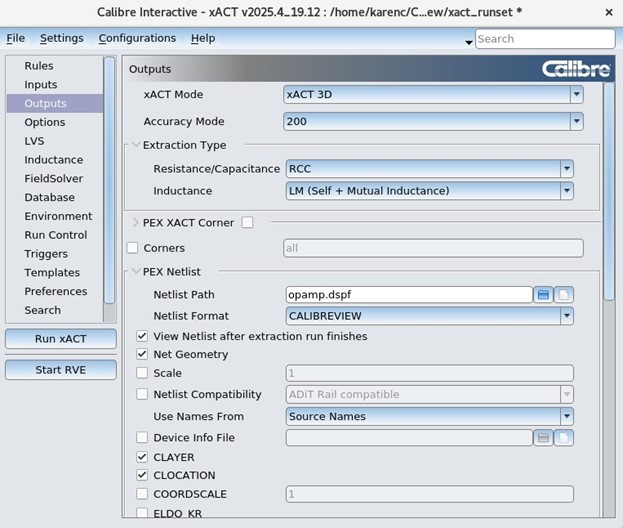
The two most common formats are DSPF and calibreview (Cadence Virtuoso extracted view).
See the blog Boost simulation results with powerful selective net extraction with Calibre xACT for more information about the options to use for calibreview setup.
For this example, we will select the DSPF format.
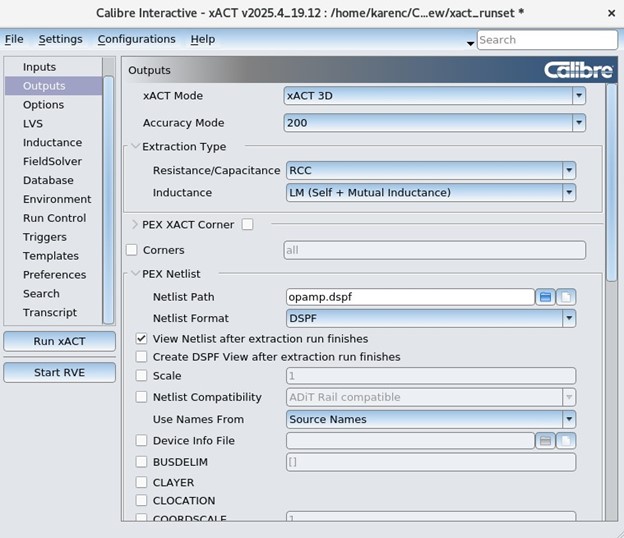
Next, for the Use Names From option, we will leave it as the default value of Source Names. This will let all of the net names come from the schematic, instead of using names from the text in the layout.
Step 7: Set up reduction options
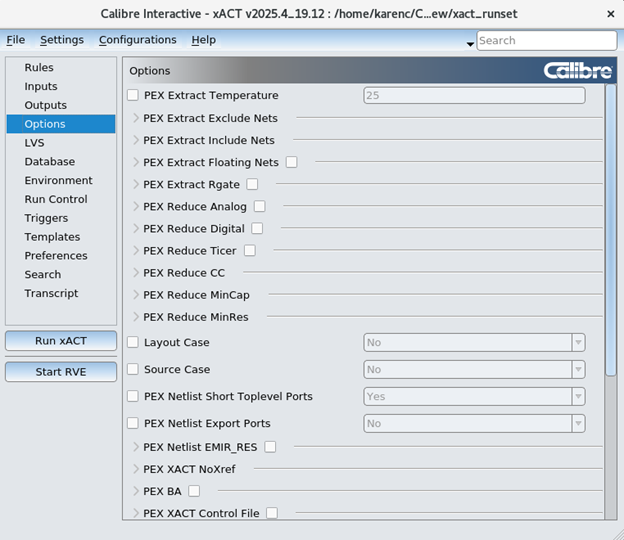
On the left side bar, click on Options. Here we have the parasitic extraction reduction options. Reduction is done to reduce the number of parasitic resistance, capacitance and inductance elements. Designers may want to turn off all reduction, to maintain the fidelity of having the entire RLC network. This will result in slower simulation. Or designers may want to turn on reduction, to have faster simulations. This may or may not impact simulation accuracy, depending on how aggressive the reduction settings are. In this example, we will leave the default settings of reduction, which sets PEX REDUCE ANALOG to YES for Calibre xACT and Calibre xACT 3D. The PEX REDUCE ANALOG option gives reduction settings for PEX REDUCE TICER (frequency-based reduction) and PEX REDUCE CC (coupling capacitance reduction) that is moderate (not too aggressive, good for analog designs).
Step 8: Run xACT
With the setup complete, click the Run xACT button. It will automatically run Calibre LVS, then will run Calibre xACT. When it finishes, the output DSPF netlist will appear.
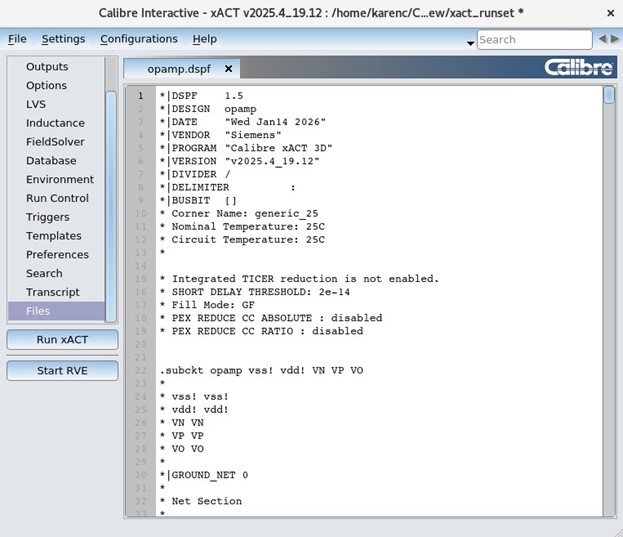
You can use this DSPF netlist in your simulations.
Conclusion
You’ve now walked through the essential steps to set up and run a Calibre PEX flow, gaining practical insights into leveraging this powerful suite of tools. From downloading the right rule decks to configuring inputs, outputs and netlist formats, you’re now equipped to generate precise parasitic netlists.
By effectively utilizing Calibre xACT and xRC, enhanced by the accuracy of Calibre xACT 3D and the critical inductance modeling of Calibre xL, you can significantly boost the fidelity of your post-layout simulations. This mastery is not just about running a tool; it’s about ensuring your IC designs are robust, high-performing and ready for the complexities of modern semiconductor technology
Calibre PEX (parasitic extraction) Tutorial – Frequently Asked Questions
To further solidify your understanding and address common queries that often arise when working with Calibre PEX, here are some frequently asked questions:
What is Calibre PEX and why is it important in IC design?
Calibre PEX refers to the parasitic extraction tools from Calibre. Parasitic extraction is important in IC design, because knowing the parasitic resistance, capacitance and inductance allows designers to model what the real silicon behavior will be.
What is the difference between Calibre xACT and Calibre xRC?
Calibre xACT is used for advanced nodes, and Calibre xRC is used for legacy nodes. The foundry selects which tool to qualify, and customers should only use the tool that was officially qualified.
When should I use Calibre xACT versus Calibre xRC?
Calibre xACT should be used by recommendation from the foundry. It is typically used for finFET nodes and below. Calibre xRC should be used when it is the tool qualified by the foundry. It is typically used for legacy nodes.
What does Calibre xACT 3D offer over standard Calibre xACT or Calibre xRC?
Calibre xACT 3D is a field solver and has higher accuracy than a rule based parasitic extraction tool.
What is the role of Calibre xL in parasitic extraction?
Calibre xL calculates self and mutual parasitic inductance. This, added to the parasitic resistance and capacitance, offers a more accurate model of how the real silicon will behave. Parasitic inductance is especially important for high frequency designs, for example, in high-speed digital circuits, and RF and microwave circuits.
Where can I find the rule decks required for Calibre PEX?
Rule decks for Calibre xACT and Calibre xRC can be downloaded in the foundry portal, for example, TSMC-Online, and Samsung Foundry Connect.
What is included in a typical Calibre PEX rule file?
There is usually runset information, such as netlisting format and reduction settings, as well as core process information necessary to calculate parasitic R, C, and L.
How do I launch Calibre Interactive from my design environment?
There is a Calibre menu in the design environment, and from there, you can select Run PEX (for Calibre xRC qualified nodes) or Run xACT (for Calibre xACT qualified nodes).
What do the accuracy modes 200, 600, and MEMS mean in Calibre xACT 3D?
The accuracy mode 200 is the fastest extraction mode, with the sparsest field solver grid for fast performance. This should be used for full chip or large block extraction and is the default accuracy mode. Mode 600 has a denser grid, providing higher accuracy with slower performance, and MEMS mode is the most accurate, keeping very small coupling capacitances.
What is the difference between DSPF and calibreview netlist formats?
DSPF is a text-based netlist, and can be used for batch simulation, and can also be imported into Cadence as a text file. Calibreview is a Cadence extracted view and can be used inside the Cadence Virtuoso environment for simulation.
What are the recommended reduction settings for R+C+CC Calibre extraction?
The recommended reduction settings for analog designs is to set PEX REDUCE ANALOG YES. This will turn on PEX REDUCE TICER (frequency-based reduction) and PEX REDUCE CC (coupling capacitance reduction) to settings which are not too aggressive and suitable for analog designs. Alternatively, setting PEX REDUCE DIGITAL YES will put the settings to a more aggressive setting, and is good for large digital designs where smaller netlists are desirable.
Do I need additional licenses for Calibre xACT 3D or Calibre xL?
Yes, additional licenses are required for both Calibre xACT 3D and Calibre xL, on top of the base application Calibre xACT and and Calibre xRC.