NX | Tips and Tricks | Realize Shape Chamfer Cage & Transform Cage Commands

In our latest Designcenter NX™ software Tips and Tricks video, we explore some of the most versatile features within Designcenter NX Realize Shape™. Specifically, we take a closer look at the Chamfer Cage and Transform Cage commands. These powerful tools enable users to create symmetrical, precise designs more efficiently, saving valuable development time and ensuring consistent quality across all models. Below, we’ll explain how to use both Chamfer Cage and Transform Cage commands—and how they can have a direct impact on user productivity and modeling efficiency.
Check out the video below or scroll down to learn more about these powerful tools.
What Is Realize Shape?
The Siemens Designcenter NX Realize Shape is an advanced subdivision modeling environment that empowers users to create complex, freeform shapes and designs—beyond what’s possible with traditional modeling methods. Instead of starting from a sketch or predefined curves, Realize Shape lets users begin with primitive shapes like boxes, spheres, or cylinders, known as “cages.”
To edit these cages, simply push and pull faces, edges, and vertices, allowing for fluid, sculptural control of your model. As you manipulate the cage, the software dynamically smooths the mesh to create high-quality surfaces—ideal for both conceptual and production-ready designs.
Key benefits of Realize Shape include:
- Intuitive, hands-on shape creation
- Accelerated concept development
- Seamless integration with Designcenter NX CAD workflows
- Enhanced design creativity
- Direct, real-time manipulation
- Faster, more flexible iterations
By bridging artistic inspiration and engineering precision, Realize Shape empowers users to create innovative products with maximum efficiency. In this post, we focus on two essential Realize Shape features: Chamfer Cage and Transform Cage.
Chamfer Cage
The Chamfer Cage command in Siemens Designcenter NX Realize Shape allows users to apply a chamfer along the edges of the control cage. Unlike the standard chamfer tool found in the modeling environment, Chamfer Cage operates directly on the control structure, modifying both the cage and the resulting surface.
Within the Chamfer Cage dialog box, you can adjust parameters such as chamfer weight (%) and control edge continuity—either sharp or smooth. This functionality enables users to achieve swift, organic modeling results, maintaining smooth and controlled transitions in their designs. The tool reduces manual adjustments and ensures consistent edge treatment across your model.

Transform Cage
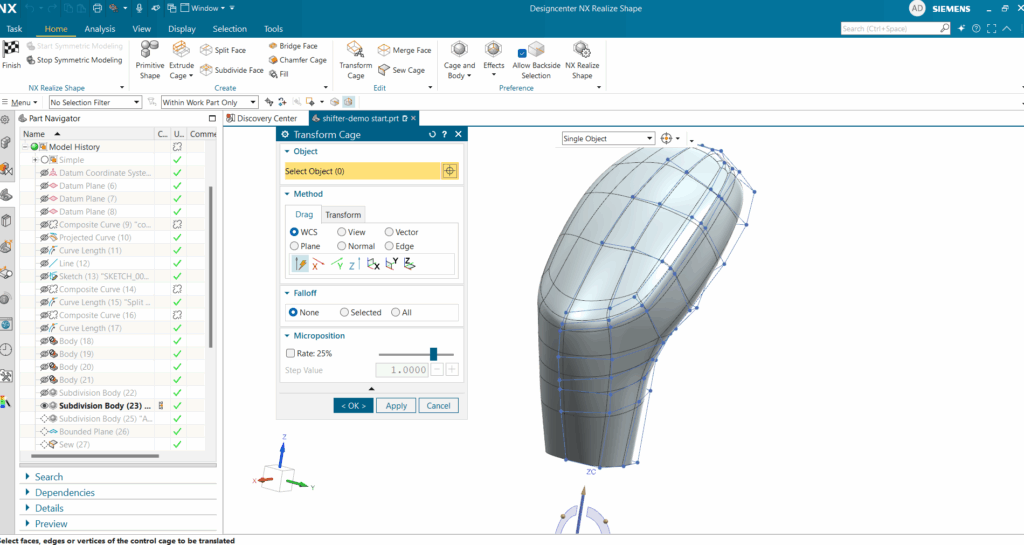
The Transform Cage command is another essential tool, giving users the ability to move, rotate, or scale selected elements of the cage—such as vertices, edges, faces, or sections of the body. The Transform Cage dialog provides multiple customization options, including transformation methods by plane, normal, or edge, as well as falloff curve types (linear, convex, or concave).
Using Transform Cage offers rapid, precise, and dynamic control over the subdivision body, making it easy to quickly reshape or reposition model features. This level of control significantly boosts productivity and expands creative possibilities.
Reviewing Realize Shape Chamfer and Transform Cage Commands
Both the Chamfer Cage and Transform Cage Commands are foundational to a flexible, intuitive modeling workflow in Designcenter Realize Shape. By leveraging these commands as a user, you can quickly achieve advanced forms and consistent, production-ready surfaces-whether they are working on concept models or final products. It will also allow you to have create models that are more customizable and more advanced than ever before all while saving time.
Continue your journey with NX
Watch the Variational Stack up Analysis Tips and Tricks Video here ▶️
Watch the Three Bend Corner in Sheet Metal Tips and Tricks Video here ▶️
Take me to the NX design blog 📚