NX | Tips and Tricks | General Selection Filtering UI

In our latest Designcenter NX™ software Tips and Tricks video, we explore multiple powerful selection filtering features that revolutionize how users interact with complex assemblies. These intuitive features enable users to navigate and modify assemblies more efficiently, saving valuable development time and ensuring precise control across all model interactions. Below, we’ll demonstrate how to leverage these selection filtering tools and how they can significantly enhance user productivity and assembly management efficiency.
Check out the video below or scroll down to learn more about these powerful tools.
What is Selection Filtering?
The Siemens Designcenter NX Selection Filtering interface is an advanced navigation and control environment that empowers users to precisely manage how they interact with complex assemblies and components. Instead of manually searching through crowded model spaces, Selection Filtering lets users specify exactly what types of elements they can select—from basic edges and faces to entire components and layers.
Key benefits of Selection Filtering include:
- Streamlined workflow efficiency
- Reduced manual searching time
- Enhanced precision in component selection
- Faster navigation of complex assemblies
- AI-assisted similar feature selection
- Customizable interface options
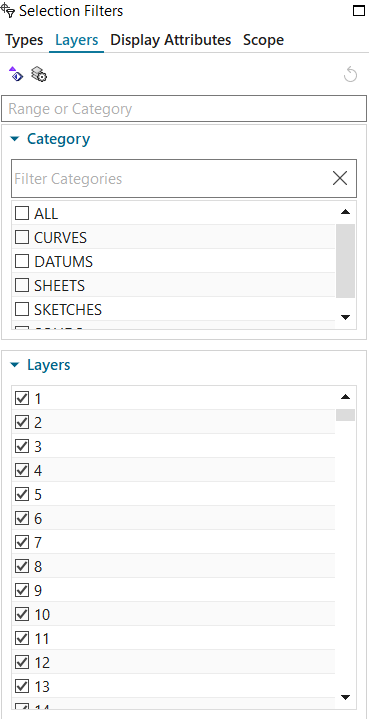
Selection Filters Navigation Dialog Box
The Selection Filters Navigation Dialog Box in Designcenter NX serves as a central hub for controlling how users interact with their assemblies. This powerful interface consists of four essential tabs, each offering unique filtering capabilities:
Types Tab:
- Default starting point with all selection options enabled
- Allows Specific filtering of basic geometry elements:
- Edges
- Faces
- Datums
- Can support multiple selection types using the Control key
- Enables focused selection of single or combined element types
Layers Tab:
- Manages selection filtering by model layers
- All layers selected by default
- Particularly valuable for complex assemblies with multiple layers
- Allows users to isolate specific layers for focused work
Display Attributes Tab:
- Filters selection based on visual properties:
- Color
- Line style
- Line width
- Helps identify and select elements with specific visual characteristics
Scope Tab offering three distinct selection ranges:
- Entire assembly view
- Within work part and components
- Within work part only



Using Selection Filters to Edit Parts and Assemblies
Selection Filters in Designcenter NX extends far beyond basic navigation, offering powerful editing capabilities that transform how users modify parts and assemblies. Let’s explore how these tools can be applied in real-world scenarios, using our rim and chassis assembly example as a guide.
Starting with basic edge modifications, we can see the power of AI-assisted selection filtering in action. When applying a chamfer to the rim, simply selecting one edge triggers Designcenter NX’s intelligent feature recognition. The software automatically highlights similar edges in blue, offering two approaches: manual selection of individual edges or using the predicted objects button to select all similar features at once. This capability dramatically reduces the time needed for repetitive operations.

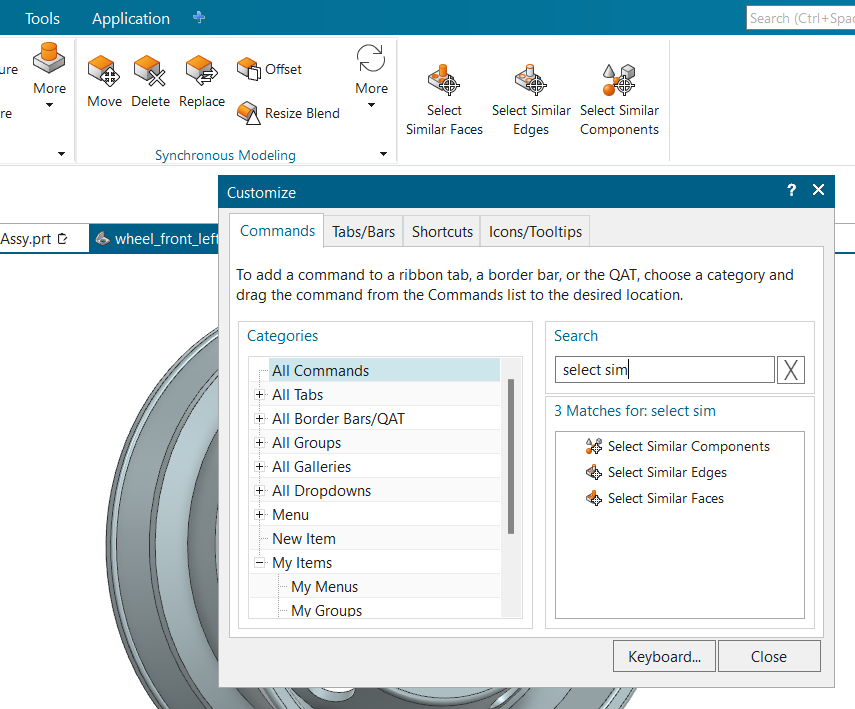
For users seeking more control over their selection filtering tools, the ribbon interface can be easily customized. By right-clicking the ribbon and selecting “customize,” users can access additional selection commands. Searching for “select similar” reveals three powerful tools – similar edges, faces, and components – which can be dragged directly onto the ribbon for quick access.
The Select Similar Edges command offers even more precise control over feature selection. After choosing an initial edge, the dialog box allows users to adjust sensitivity rates, fine-tuning how the software identifies similar features. The results appear highlighted in orange, and users can individually refine their selections through the right-click menu, ensuring exactly the right edges are modified. This level of control is particularly valuable when working with complex geometric patterns, as demonstrated in our rim example.

Face operations follow a similar workflow. The Select Similar Faces command enables users to quickly identify and modify multiple surfaces at once, whether for deletion, modification, or other operations. This proves especially useful when working with repeated patterns or symmetric features within parts.
Another component selection, users can leverage is the hover selection feature. By simply positioning the cursor over an area of interest and waiting a few seconds, three dots appear next to the cursor. Right-clicking reveals a “Select from List” option at the top of the menu, which generates a comprehensive list of all components available in that specific area. This intuitive approach provides yet another efficient method for navigating and selecting components, especially useful when working in densely populated regions of an assembly.

When working with larger assemblies, the Select Similar Components command becomes invaluable. As demonstrated with our chassis assembly, selecting one rim automatically identifies the matching rim on the opposite side, while also highlighting other potentially similar components. This capability significantly reduces the time needed to locate and modify repeated elements within complex assemblies.

These selection filtering tools, provide users with unprecedented control over their design modifications. Whether working on detailed part features or managing large assembly structures, these intelligent selection capabilities ensure precise, efficient editing while minimizing the time spent on repetitive tasks.
Intergrated Design Copilot NX Capabilities
Designcenter NX’s integration with Design Copilot NX marks a revolutionary advancement in CAD assistance, offering users an intelligent, conversational interface for instant support and guidance. Conveniently positioned in the top-right corner of the interface, Design Copilot NX serves as an always-available digital assistant that transforms how users interact with and learn about NX’s capabilities. Users can simply type natural language questions such as “How can I select different components?” and receive immediate, detailed responses complete with step-by-step instructions and best practices.
The power of Design Copilot NX extends far beyond basic command location. When working with selection filtering tools, the AI assistant provides comprehensive guidance, including alternative approaches, related feature recommendations, and links to relevant documentation. This immediate access to information eliminates the need to search through multiple menus or consult external resources, keeping users focused on their design work. Users can also interact with the responses through a feedback system, rating the usefulness of answers and exploring related topics suggested by the AI.
What makes Design Copilot NX particularly valuable is its ability to learn and adapt to user needs. The system not only answers direct questions but also offers workflow optimization suggestions, feature comparisons, and industry best practices. This continuous learning approach, combined with context-aware responses and source-verified information, makes Design Copilot NX an invaluable partner in the design process, significantly reducing the learning curve for new features while enhancing overall productivity.

Summary of Selection Filtering
Selection Filtering in Designcenter NX represents a comprehensive solution for efficient assembly and part management, combining traditional filtering methods with cutting-edge AI capabilities. From basic edge and face filtering to advanced similar selection tools, these features dramatically reduce the time spent on routine tasks while ensuring precise control over complex designs. The intuitive Selection Filter Navigator, with its four powerful tabs – Types, Layers, Display Attributes, and Scope – provides users with unprecedented control over their selection process.
When combined with AI-powered similar selection capabilities, hover selection features, and the intelligent Design Copilot NX integration, users gain a complete toolkit that transforms hours of manual work into minutes of efficient design time. Whether working on intricate part details like our rim example or managing large assemblies like the chassis, these selection filtering tools not only enhance productivity but also maintain accuracy and design integrity.
The ability to customize the ribbon interface, leverage AI-assisted selection, and access instant guidance through Copilot makes this toolkit an essential asset for modern CAD workflows, enabling users to work smarter, not harder, while maintaining complete control over their design process.
Continue your journey with Designcenter NX
Watch the Realize Shape Tips and Tricks Video here ▶️
Watch the Sketch and Profile Creation Tips and Tricks Video here ▶️
Take me to the NX design blog 📚