AA battery replacement project tutorial #3: LiPo Batt

Continue
This entire project is intended to be done within the free trial period.
[This is Part 3 of the tutorial, for Part 1 click HERE]
Open Schematic
Double click your saved schematic to open and continue where we left off from.

New Schematic Sheet
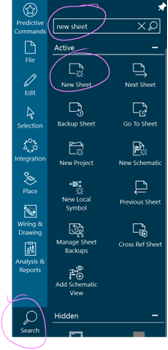
Let’s create a new schematic sheet. Can you guess how to do so?
… Yup! You can just look it up as in the image below:
View Your Sheets
This one can be a little tough to guess coming from other CAD tools, not knowing what term to look for.
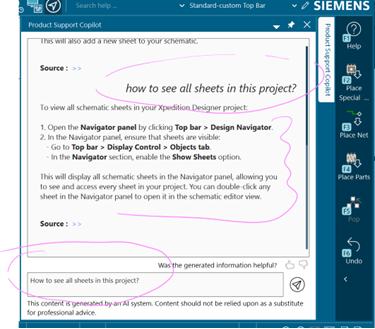
In this case, you can always ask the Product Support Copilot by simply asking it something like “How do I view all my sheets?” as in the images below:
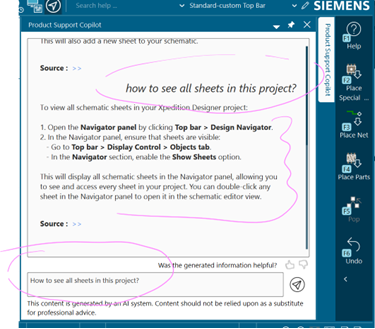
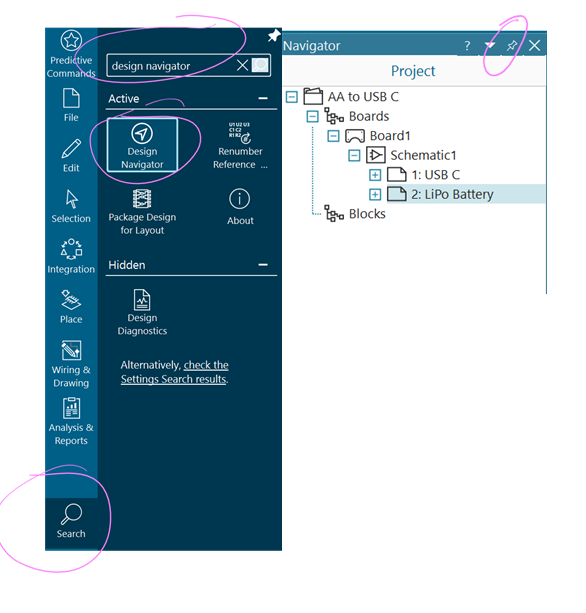
Design Navigator
So now that you know it’s called the Design Navigator, you can use the search tool to find it and pin it.
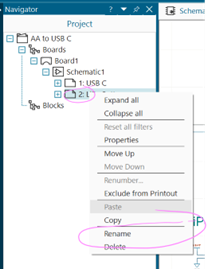
You can also right click on the sheet in the Navigator to rename it:
Here is what we covered in the previous lesson about how to import parts.
Refer to this for the next section!
Reminder Start:
Using the Search Tool again, look for PartQuest and click it
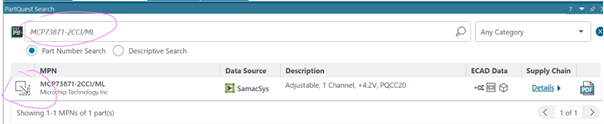
In the search box, look up our battery charger by entering its part number
MCP73871-2CCI/ML as in the image below
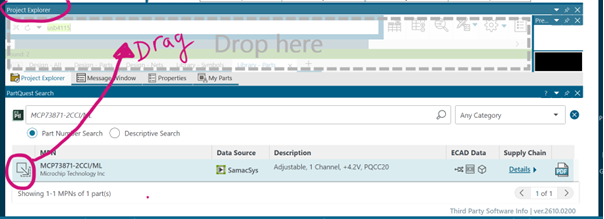
Drag and drop the part into your Project Explorer menu as in the image below
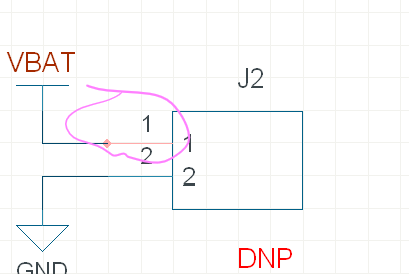
Click and drag into your schematic as in the image below
Reminder End 😏
External Components
Now, let’s use this reminder to find the following components and add them to your schematic:
- M20-9990246 (you should already have this! Just copy + paste it into your new sheet!)
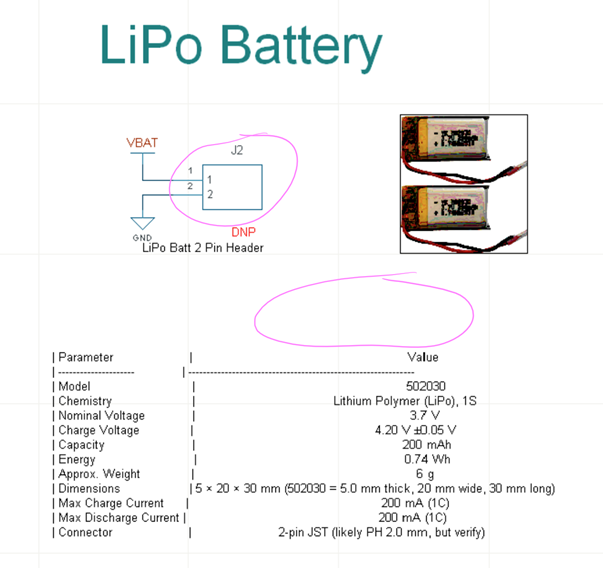
- LP502030JH (I’ve had the symbol created for you)
The LP502030JH component is searchable in PartQuest, but it is an off-board component, therefore ECAD models would not normally be available for this component in PartQuest.
To save time, you can download the .EDX ECAD model container file containing the LP502030JH symbol and part properties here: Shrouk’s ‘AA is Dead’ Project Discussion Page. The link also includes steps on how to import the component into the schematic.
Note: As an engineer and designer, you likely will be faced with this scenario in the future where a pre-made ECAD model (symbol and/or footprint) is not readily available. As a result, if you have time to spare, you can create your own block symbol for the LP502030JH component! To do this, you can follow the high-level steps below. If you prefer to simply import the symbol that was created, go to the Shrouk’s ‘AA is Dead’ Project Discussion Page
To create the LP502030JH symbol, navigate to the PartQuest Portal web application and follow the symbol creation tutorial <Symbol Creation – PartQuest Portal> that was used to create the LP502030JH symbol:
- You first search for the LP502030JH part in PartQuest Portal web application.
- On the search result page, click the ‘More’ arrow on the right side of the page.
- Click the ‘Choose Symbol’ button, then click ‘Create Symbol’
- Continue to follow the steps in the symbol creation tutorial referenced above. Note, the LP502030JH symbol only has two pins.
- After you complete the creation of the symbol and have clicked ‘Done’, you will be taken back to the search results page.
- Then, click the ‘Download’ button and you will obtain an EDX file with your newly created symbol. Again, you can find the import instructions at the Shrouk’s ‘AA is Dead’ Project Discussion Page
Arrange Components
Arrange your components so that they look something like the image below.
Pro Tip:
Click CNTRL + R to rotate components
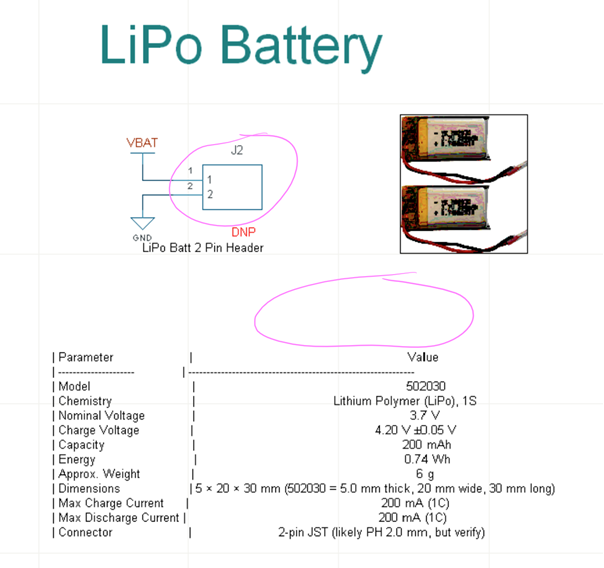
ANOTHER Pro Tip:
Want to turn off pin number attributes?
Of course, you can ask the Product Support Copilot how to. But here’s a quick way to do it:
- Double click the actual PIN itself
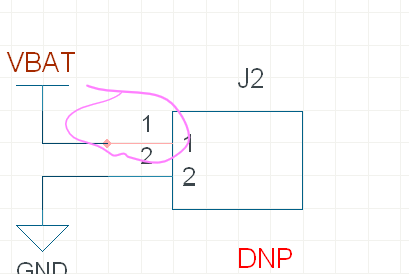
2. When the properties tab opens, simply untick the pin number
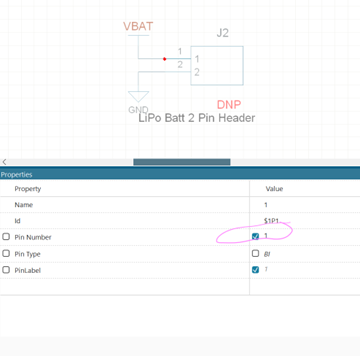
Set as DNP
We are using this header as through hole pins for our battery, so let’s mark it as DNP:
- Double click the part itself
- When the Properties tab opens, go to the very bottom
- Start typing “Unpla..” in an empty field

- Choose Unplaced Symbol field
- Make sure the Unplaced Symbol field is set to DNP
Remove from BOM
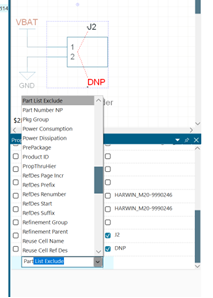
Setting this part as DNP will not automatically exclude it from the BOM. To exclude it from the BOM:
- Double click the part itself
- When the Properties tab opens, go to the very bottom
- Double click the empty attribute field as in the image below
- Start typing Part List Exclude
- Set it to True
Pro Tip:
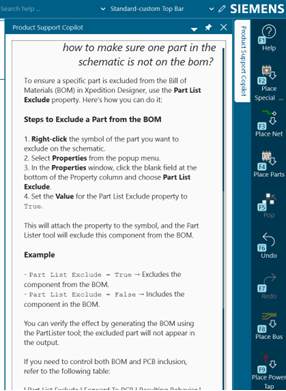
Of course, you could have also asked the Product Support Copilot as below:
Off Board Component
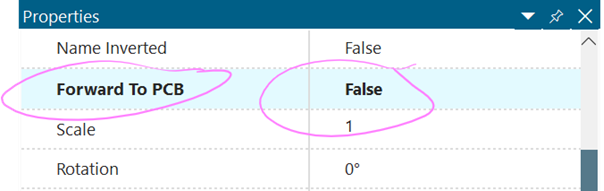
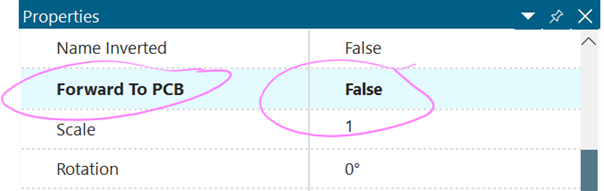
To keep the battery on the BOM, but off the PCB, follow the following steps:
- Double click on the LP502030JH symbol
- In properties, find the Forward To PCB field
- Set that field to False
Import Image
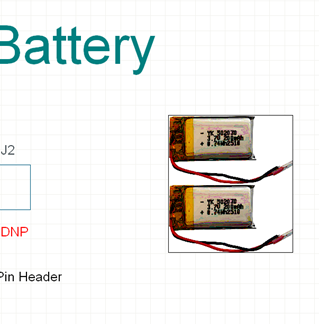
You can import an image of your battery simply by copy/paste into your design!
Place Power Symbols
There are many ways to place a power symbol.
My favourite is always to find anything I want through the search bar as in the following image.
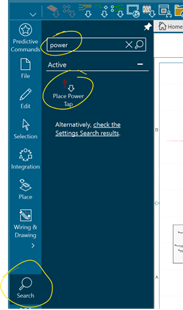
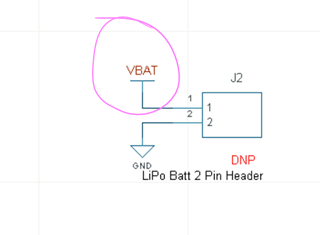
Once you place it, you can right click to select properties, and change its name to VBAT
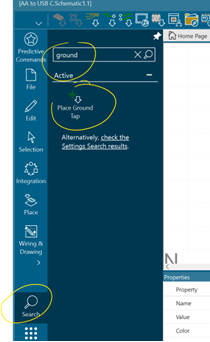

Place VBAT as in the following image:
Place Ground
You guessed it, you can just look this one up too!
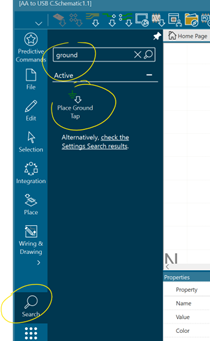
Now place GND as in the following image:
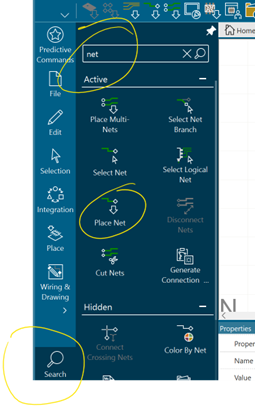
Place Net
Yup, you can just look this one up
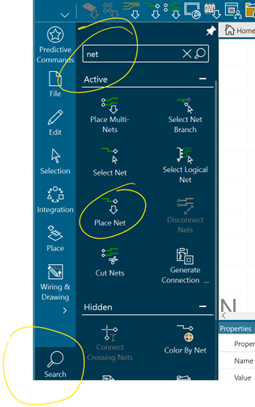
Pro Tip:
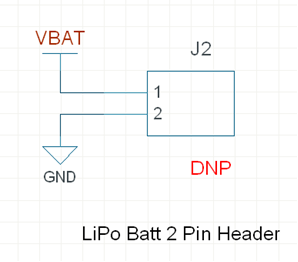
Click n (lower case) to place a net
So go do your thing and place nets to connect components as in the following image
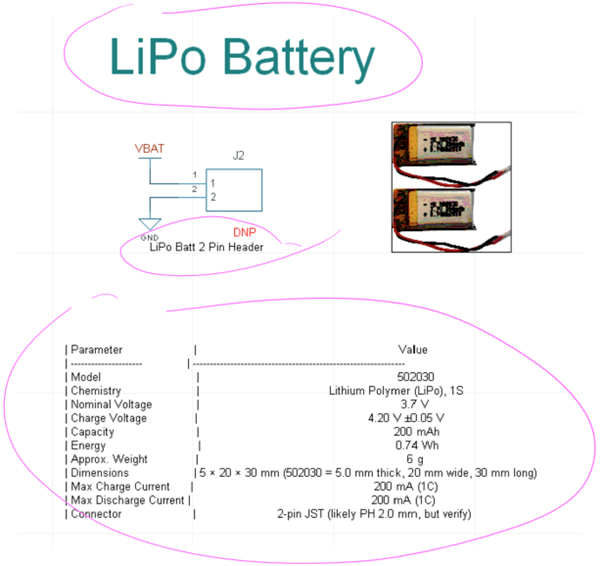
Place Text
Can you guess how to place text?
Yup, look it up through the search bar and you can find it in an instant!
Now, can you guess how to edit it?
If you guessed right click → properties, then you’re absolutely correct!
Place text where you see fit. This is how I chose to do mine (in the image below) but do whatever you see fit!
Reference Designators
We will do this at the very end, so worry about this for now!
That’s it for today!
Save and close your project, and let’s continue next time. Let me know if you enjoyed this tutorial in the comments!
And if you are struggling with anything, post your issue in the comments and I’ll get back to you as soon as I can.
Have a wonderful Xpedition!