Designcenter NX | Tips & Tricks | Assembly Constraints
Assembly constraints sit quietly at the core of every well‑built Designcenter NX™ software assembly. When they work, everything just fits. When they don’t, they can introduce downstream issues that cost time, confidence and patience.
In this Tips & Tricks post, we take a closer look at recent usability improvements and new functionality around creating and handling assembly constraints in Designcenter NX. Using a practical electric gearmotor example, we’ll explore how our software helps guide you toward valid constraints, improves how constraints are visualized, and introduces more intuitive ways to position components.
Whether you’re managing complex assemblies or fine‑tuning everyday workflows, these enhancements are designed to help you work faster, cleaner and with fewer surprises.
Follow along with the video below for the best experience.
Creating only valid constraints: Goodbye guesswork
One of the most impactful improvements in recent releases is something should notice straight away. Or more accurately, something you won’t encounter anymore.
Conflicting assembly constraints can no longer be created in Designcenter NX.
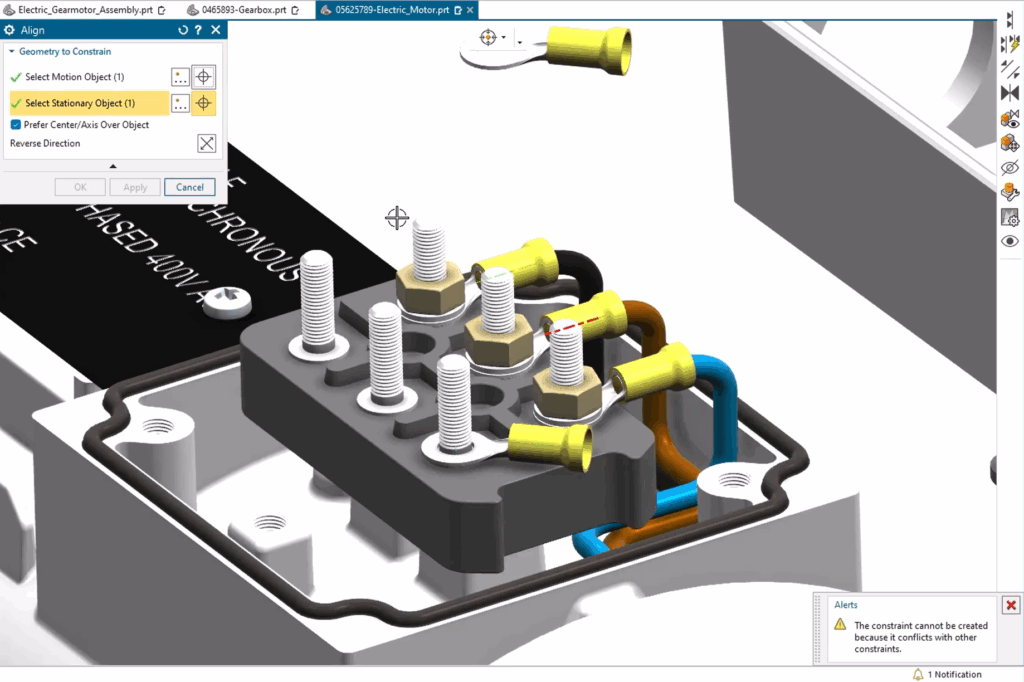
Why does this matter? In the past, it was possible to add constraints that technically solved at the moment but created problems later, especially as additional constraints were stacked on top. These conflicts often surface downstream, forcing time‑consuming rework. Now, Designcenter NX actively prevents this from happening.
When you attempt to create an unsolvable constraint, such as trying to align two cylindrical centerlines that do not line up given existing constraints, Designcenter NX clearly identifies the issue as a conflicting constraint. The system disables OK and Apply until a valid solution is possible. This removes ambiguity and protects the integrity of your assembly.
The result is a smoother workflow with clearer feedback and fewer surprises later in the design process.
Show constraints of component: Visual clarity where you need it most
As assemblies grow, even experienced users can struggle to visually untangle which constraints belong to which components. Designcenter NX addresses this challenge with Show Constraints of Component.
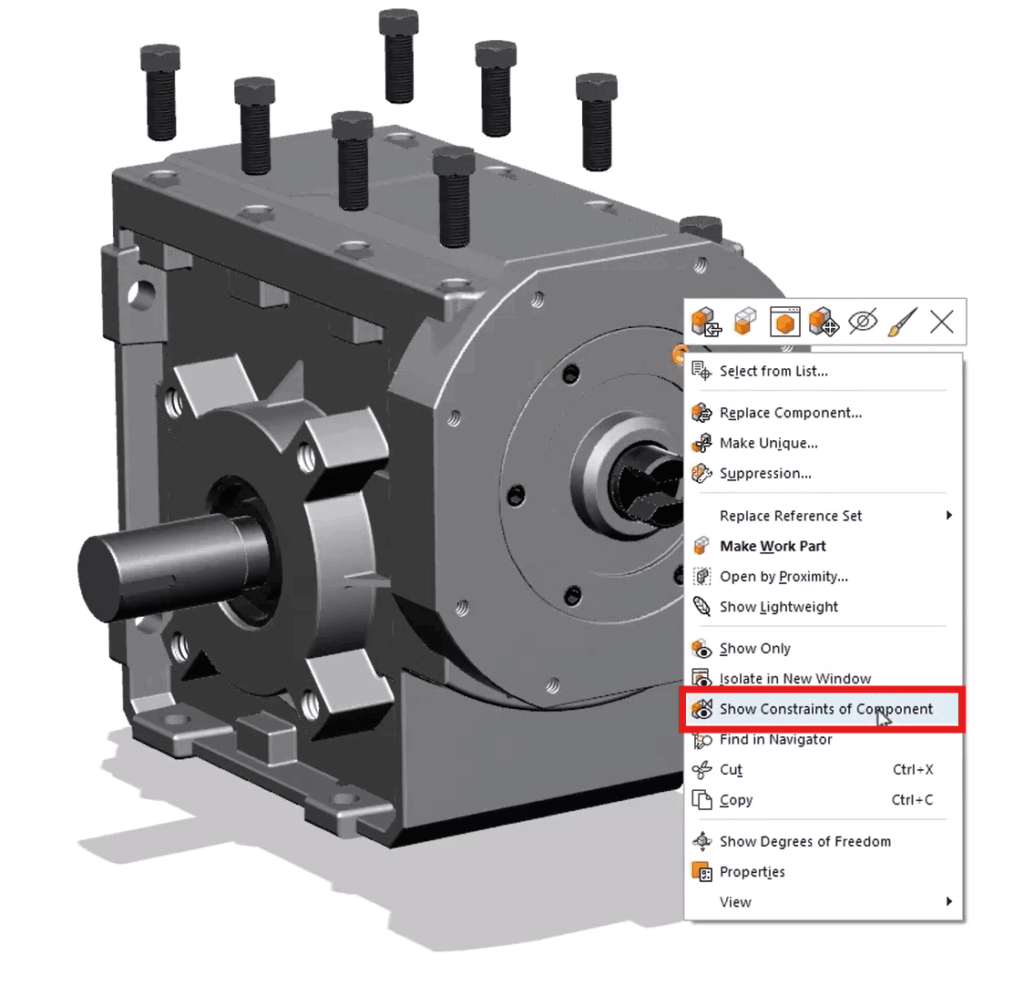
By hovering over a component in the graphics window and selecting Show Constraints of Component from the right‑mouse‑button menu, Designcenter NX displays only the constraints related to that component while hiding all others in the assembly. The same option is also available from the Assembly Navigator and the Assembly Ribbon Bar.
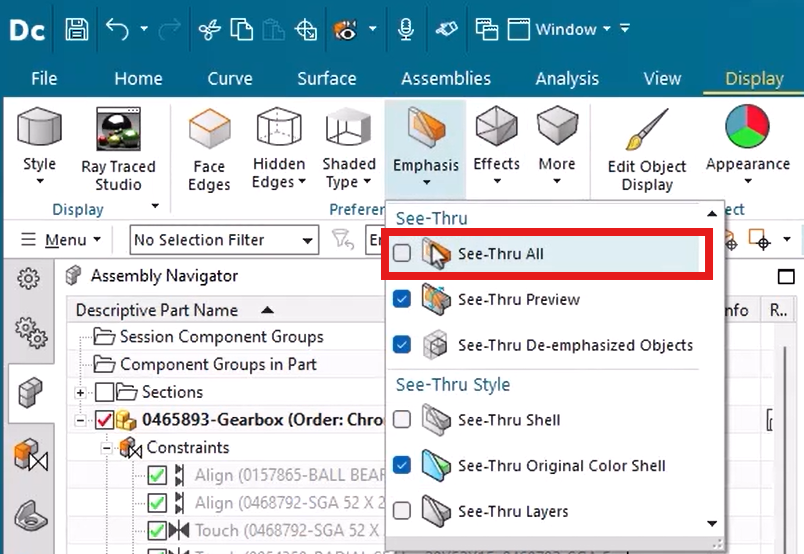
To further improve visibility, the See-Thru All option can be used to dim surrounding geometry. This helps emphasize the constraints and components you care about while reducing visual noise.
This workflow becomes even more powerful when combined with Smart Selection and Select Similar Components. If you are looking at repeated hardware like fasteners, you can quickly find similar components and review their constraints together.
In larger assemblies, this level of focused visibility is not just convenient. It is essential.
Copy and paste: Now exactly where you expect it
Copying components and subassemblies is a routine task, but even small inefficiencies add up over time. Designcenter NX now improves this workflow with Copy and Paste.
When you copy a component or subassembly and paste it back into its parent assembly, the pasted item appears in its original location. Subassemblies remain packed in the Assembly Navigator, and the newly pasted component stays selected.
This makes it easy to immediately reposition the copied item using Move Component, without having to first locate it in the graphics window. Layout variations, design alternatives, and iterative placement all become faster and more predictable.
Auto align with drag & drop: Constraint creation that feels natural
Auto align assembly constraints have long been a powerful tool in Designcenter NX, and recent enhancements make them even more intuitive to use.
You can now drag and drop components directly in the graphics window based on face selection.
By setting the selection filter to Face, you can click and hold a component by one face, drag it to a matching face on another component, and release it. Designcenter NX automatically creates an Align constraint between the matching faces. This works for both cylindrical and planar geometry.
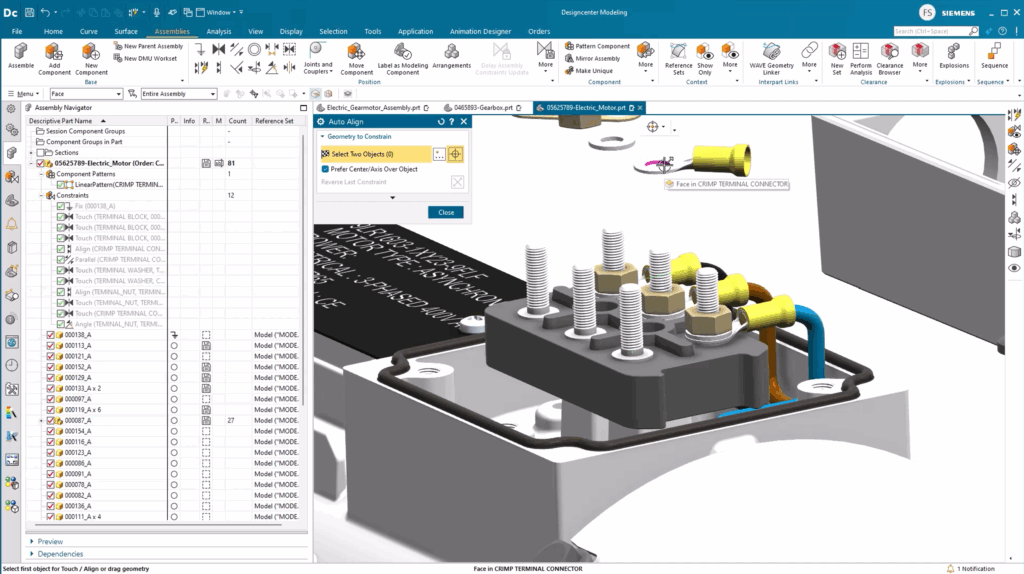
As you build up multiple constraints, components quickly snap into their intended positions. If orientation needs adjustment, the constraint can be flipped to achieve the correct final placement.
For positioning small or free components, this workflow feels far more natural than traditional constraint definition. It allows you to think spatially while the software handles the constraint logic in the background.
Why these changes matter
Taken together, these updates reflect a clear focus on usability and design intent within Designcenter NX.
Preventing conflicting constraints helps protect model stability. Improved constraint visibility reduces cognitive load. Predictable copy‑paste behavior streamlines layout work. Drag‑and‑drop auto align lowers the barrier to precise positioning.
None of these enhancements change what you can build in Designcenter NX. Instead, they significantly improve how efficiently and confidently you get there.
Final thoughts
Assembly constraints may not always be the most visible part of the design process, but they are among the most critical. By refining how constraints are created, visualized, and managed, Designcenter NX continues to remove friction from everyday assembly workflows.
If you have not explored these updates yet, now is a great time to revisit your assemblies and take advantage of these improvements.
Thanks for following the Tips & Tricks series and stay tuned for more practical insights designed to help you work smarter with Designcenter NX.
Continue your journey with Designcenter NX
Ready to experience it yourself? Explore the December 2025 release and find more Tips and Tricks to help your design process.
Take me to the full Designcenter NX blog 📚