Designcenter X NX | Tips and Tricks | Copilot
Copilot is available in Designcenter X NX™ and Designcenter X NX with built-in data management. Copilot provides the user with intelligent AI-powered guidance to help streamline their workflows and reduce training times on complex tasks.
Watch the video below for helpful tips on Designcenter X NX or keep scrolling if you’d prefer to read.
The Workflow: Clearance Analysis on a Safety Gate
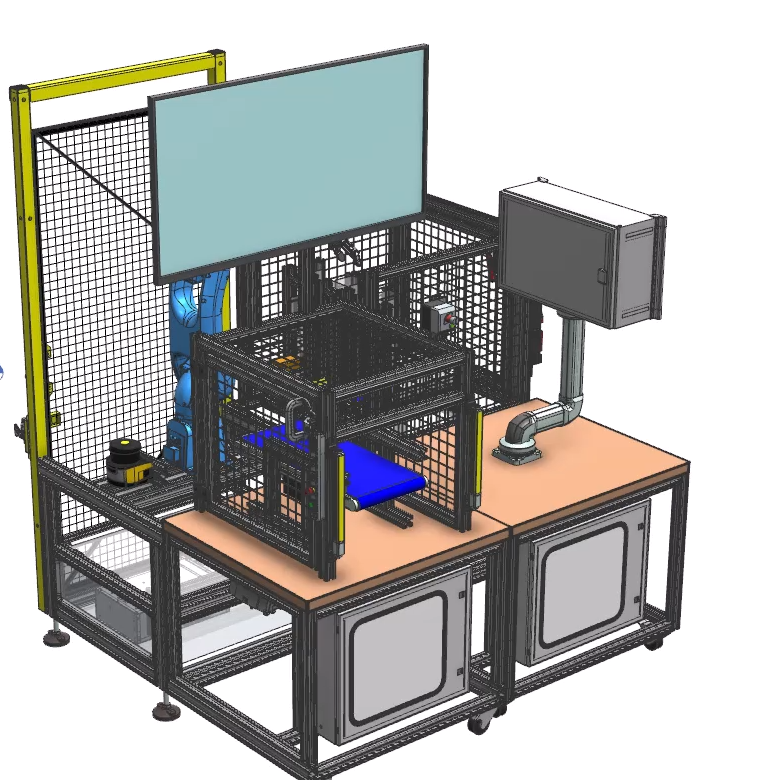
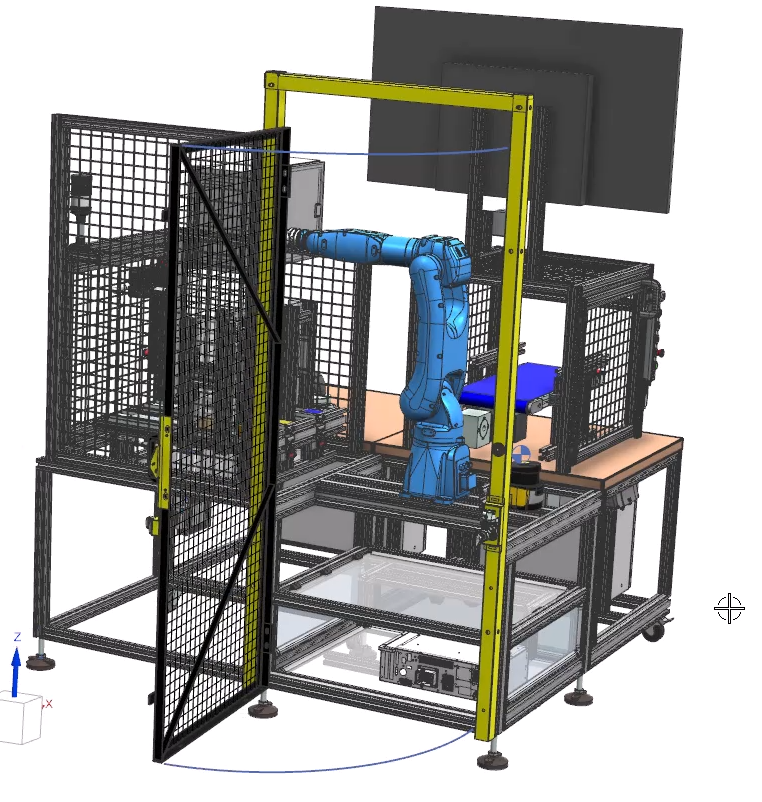
In our example we have a safety gate for a card machine that we need to do clearance analysis on. Tasks like this can involve multiple steps and tools that can take some time to relearn if it is not a workflow you use every day. Copilot can help reduce the time it takes me to finish my work flow by allowing me to access helpful resources without the need to leave my environment to search for answers.
Accessing Copilot
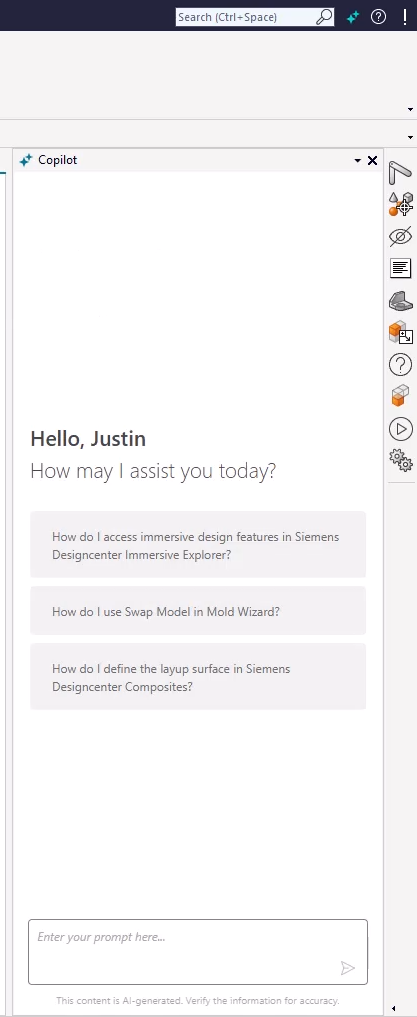
In Designcenter X NX, two stars next to each other can be found next to the search bar. Clicking on them will start a Copilot session within your NX session, where you can interact with Copilot in the same way you would interact with any other chat-based AI assistant. When your Copilot session launches, you will find some pre-written prompts based on your recent activity that you can select. These suggested prompts work similarly to how NX’s Command Prediction feature works, Copilot considers the recent commands you have used to anticipate what questions you might have next to help you find answers faster. Copilot does not access personal user data, but it does consider recent commands you have used within your session.
Prompting Copilot and Accessing Sources
When Copilot generates a response you will notice certain words are highlighted or have numbers next to them. The numbers are sources used when generating the responses. You can access these sources by scrolling down to the bottom of the response and clicking on them. This makes it easier to verify the information Copilot has provided and access additional resources related to the topic if you wish to explore them in greater depth.
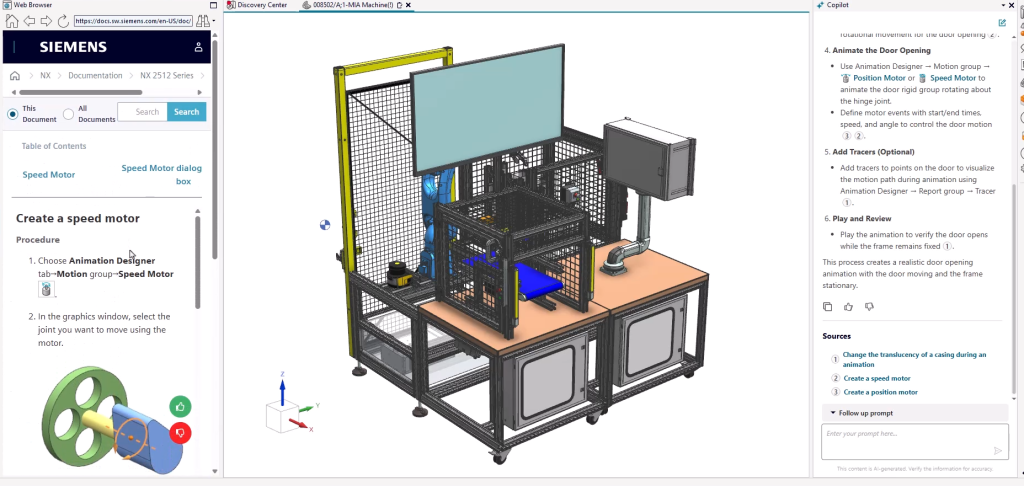
Words that are highlighted within a response are more than just visual indicators. They are direct links to commands in Designcenter NX. Hovering over them with your cursor will display the path to the command and highlight them with a red box making it straightforward to locate the tools being referenced in Copilot’s response. This is particularly useful for newer users that are still getting familiar with where specific commands are within the interface.
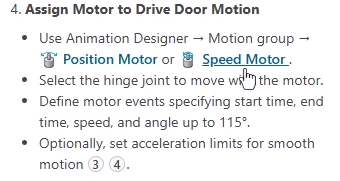
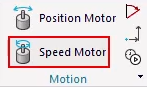
As with other large language models, the quality of Copilot’s responses is tied to the quality and detail of your prompts. Using effective prompting techniques and taking a moment to provide more context and detail in your questions will lead to a more thorough and useful answer. Think of Copilot as a knowledgeable collegue that can be more helpful with more added context, the more clearly you can explain what you need help with, the better guidance you will receive.
Creating an Animation with Guidance
Once we have a detailed explanation from Copilot with step be step guidance of how to approach animating the safety gate, we can begin animating the gate. Once the hinges and movements are set, I can add tracers to generate arcs around the movement path. This gives us a clear visual representation of the clearance needed for the gate to open and closes in the larger contexts of a production facility.
Once the animation is completed, it was clear that Copilot successfully guided us through the entire workflow from start to finish. Without it we would have spent significantly more time consulting with support materials, navigating through menus or reaching out for additional support from colleagues. The result was a fully functional animation that gave us the clearance information were needed, created in a fraction of the time it would have taken if we were new to the workflow without the assistance of Copilot.
Copilot in Designcenter X NX represents a leap forward in how users can interact with our software, making powerful capabilities more accessible across different levels of experience. Whether you are exploring a tool for the first time or revisiting an old workflow, Copilot can support you every step of the way.
Continue your Journey with Designcenter NX
Watch the Molded Part Designer Tips and Tricks video here▶️
Watch the Mass Property Molded Part Designer Tips and Tricks video here▶️
Take me to the NX design blog 📚