Designcenter | How To | Industrial Styling & Design
In our latest Designcenter™ software How To series video, we explore how Designcenter Industrial Styling & Design empowers you to create stunning, production-ready aesthetic designs seamlessly within your engineering environment. From early concept exploration to refined Class-A surfaces, this powerful workflow bridges the gap between creative design and engineering precision, dramatically accelerating your product development process.
Check out the video below or scroll down to learn more about unlocking the full potential of Industrial Styling & Design.
What is Industrial Styling & Design?
Designcenter Industrial Styling & Design is a comprehensive, workflow-driven environment built for designers and engineers who need to create high-quality, aesthetically refined surfaces alongside their engineering data. Whether you are developing consumer products, automotive components, or industrial equipment, Industrial Styling & Design provides the tools to move fluidly from initial concept to final production-ready geometry all without leaving the familiar Designcenter environment.
Leveraging Raster Images for Design Inspiration
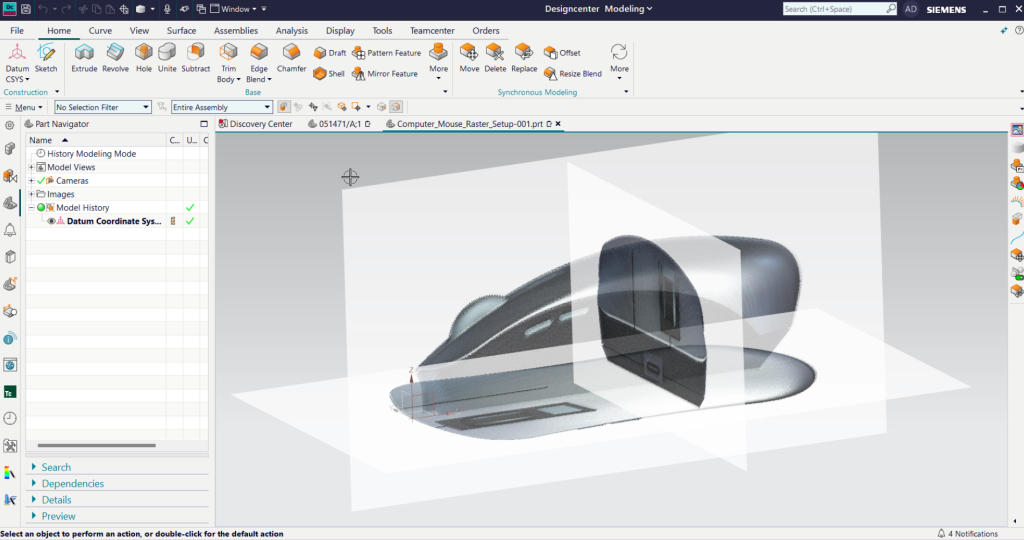
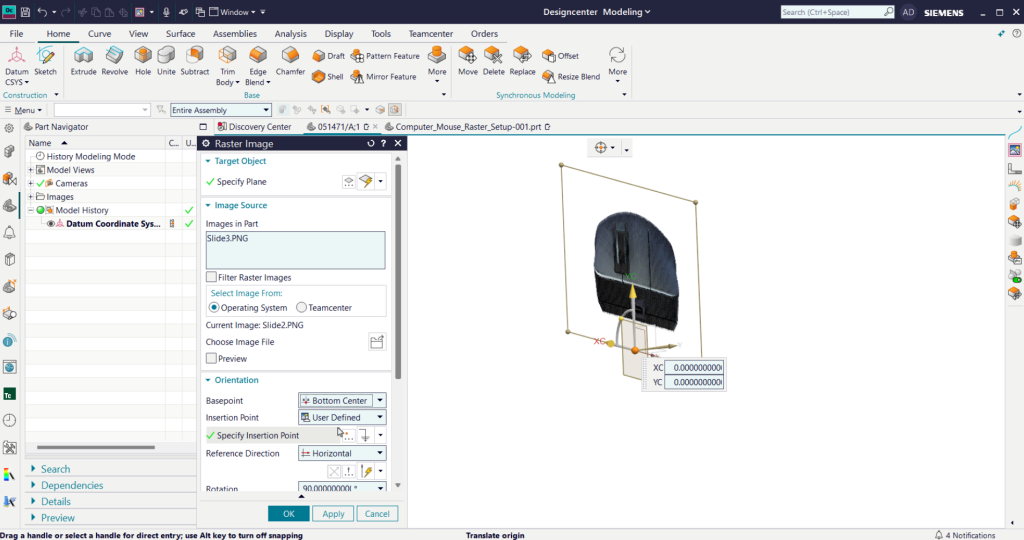
Every great design, product, and idea starts with inspiration. Industrial Styling & Design in Designcenter makes it increadibly easy to bring your vision and ideas to life by allowing you to import and position Raster Images directly into your modeling environment. These images serve as precise references, enabling you to model around existing sketches or photographs, ensuring your digital design accurately reflects your initial concept. You can easily manipulate their position, reference direction, and insertion points to align perfectly with your design intent.
Precision Curve Creation with Studio Splines
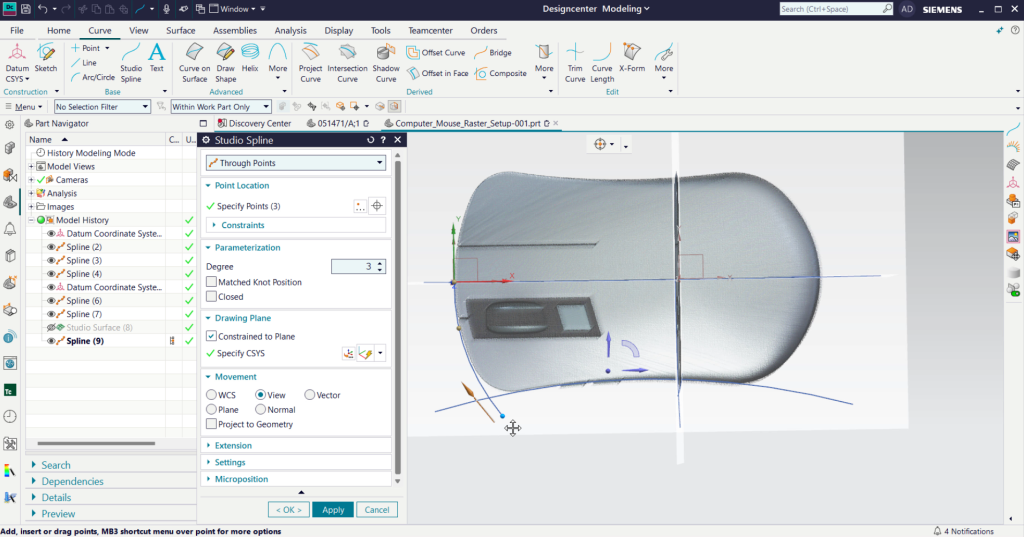
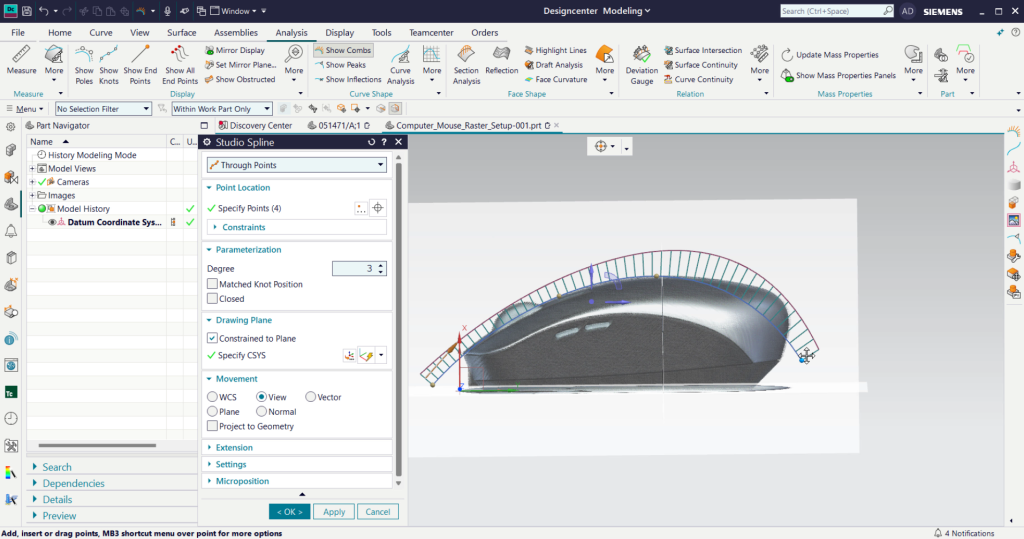
The main foundation of any surface lies within its curves. With Designcenter Studio Splines, you gain unparalleled control over curve creation. You can define intricate curves by selecting points, constraining them to specific planes, and extending their ends for easier trimming later. To ensure the highest quality, the Show Combs feature under the Analysis tab provides instant visual feedback on curvature continuity. This allows you to identify and resolve any underlying issues, guaranteeing smooth and continuous transitions in your design.
Building Sophisticated Surfaces with Studio Surfaces
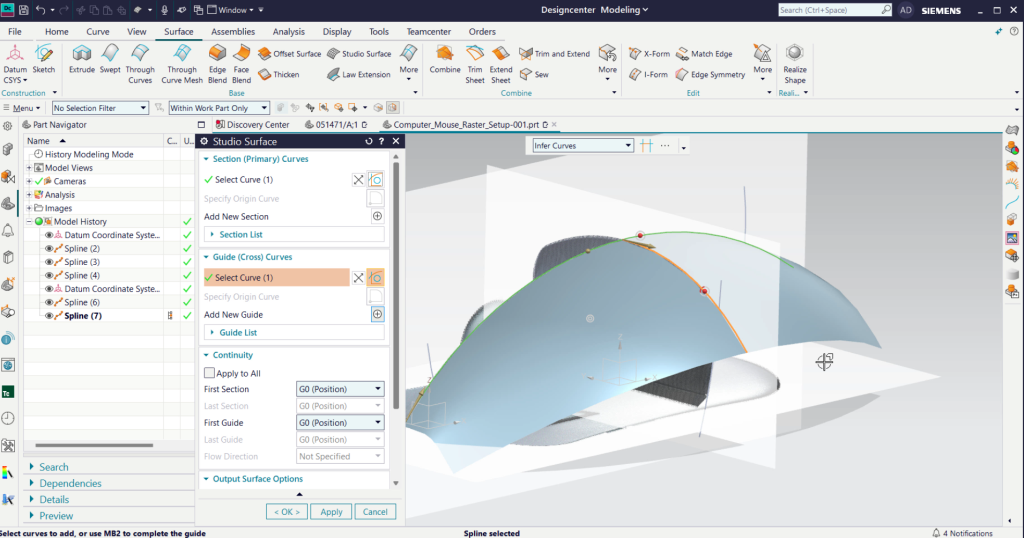
Once your foundational curves are in place, Studio Surface allows you to effortlessly generate complex surfaces, truly bringing your model to reality. By selecting primary and guide curves, you can quickly create the body of your product. The flexibility to Switch Strings within the command window ensures your surfaces precisely cover your reference images, preventing any unintended gaps and misalignments.
Ensuring Quality with Advanced Analysis Tools
Designcenter doesn’t just help you create; it helps you perfect. After generating your surfaces, essential Analysis tools like Reflection provide critical insights into surface quality. By activating Mirror Display under the View tab, you can instantly see a symmetrical representation of your model and analyze the reflections across its surface. Smooth and continuous reflection lines confirm the fluidity and high quality of your design, ensuring a visually appealing and production-ready aesthetic.

Refining and Perfecting Your Design
Industrial Styling & Design offers powerful tools for meticulous refinement:
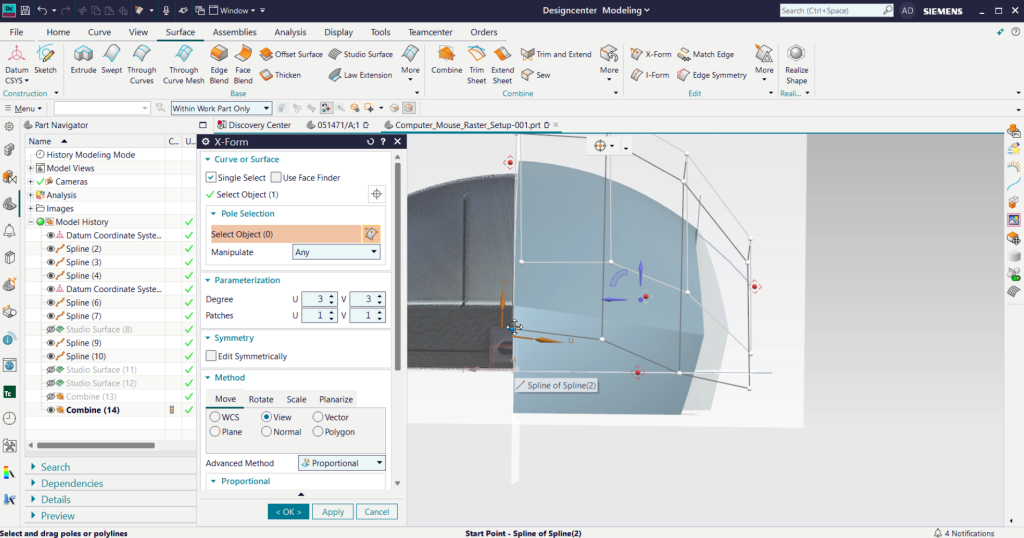
- X-Form: For precise adjustments, the X-Form command allows you to individually select and drag points on your surface or use advanced proportional methods to achieve exact alignment with your design references. This ensures your model’s edges follow the intended path with accuracy.
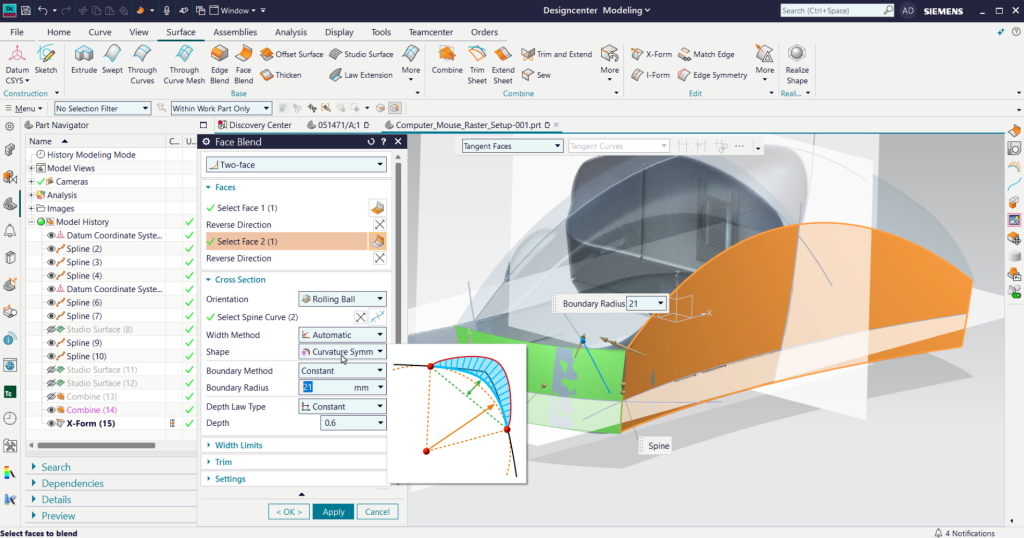
- Face Blend: To achieve smooth, rounded corners, Face Blend is your go-to tool. By simply selecting the curve, two faces, and your desired radius, you can create aesthetically pleasing transitions. Ensuring curvature symmetry guarantees a uniform and high-quality blend.
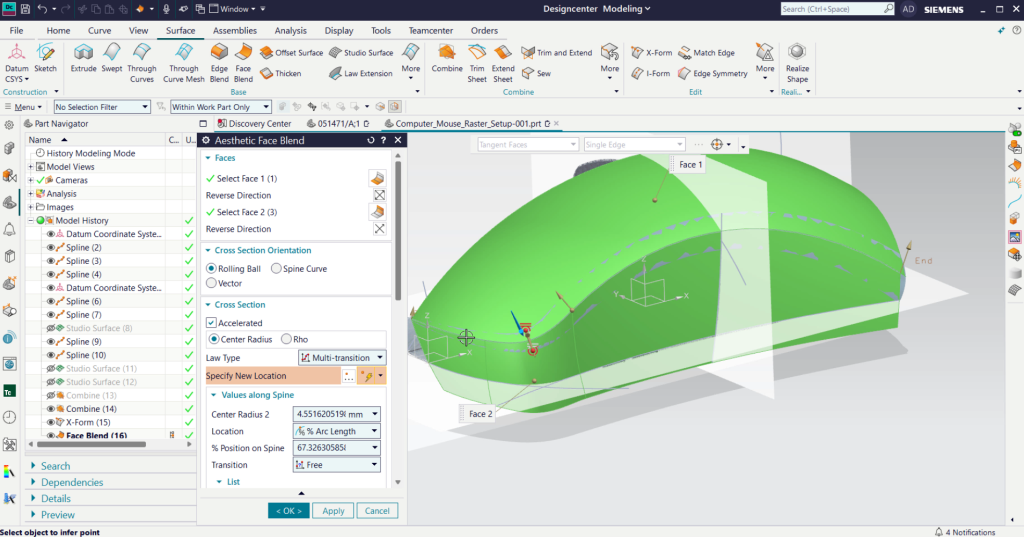
- Aesthetic Face Blend: For even more nuanced transitions, the Aesthetic Face Blend command, found under More, provides advanced control. With multi-transition law types, you can blend different radii in various areas, allowing for highly customized and organic shapes. The ability to reverse normal directions ensures correct surface generation and a perfect preview of your results.
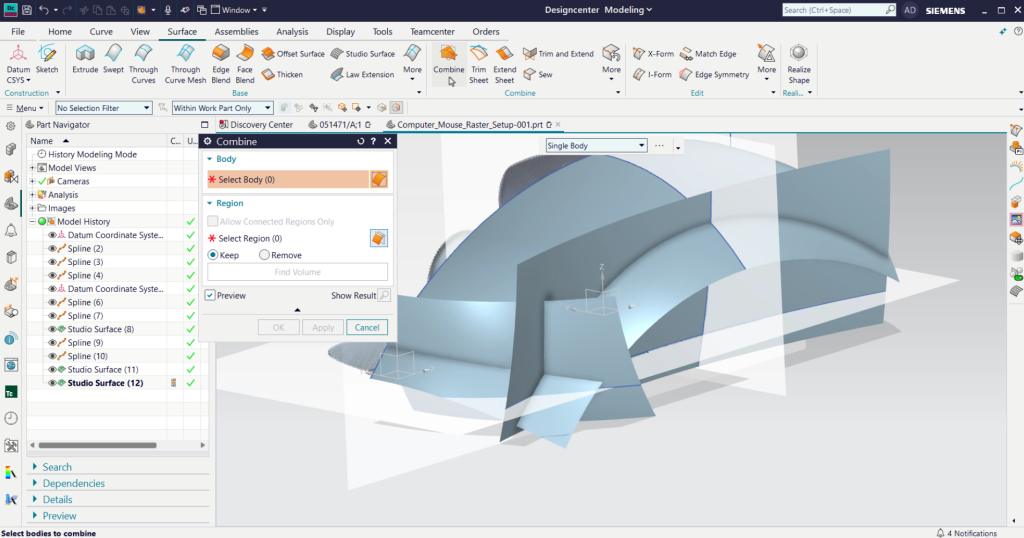
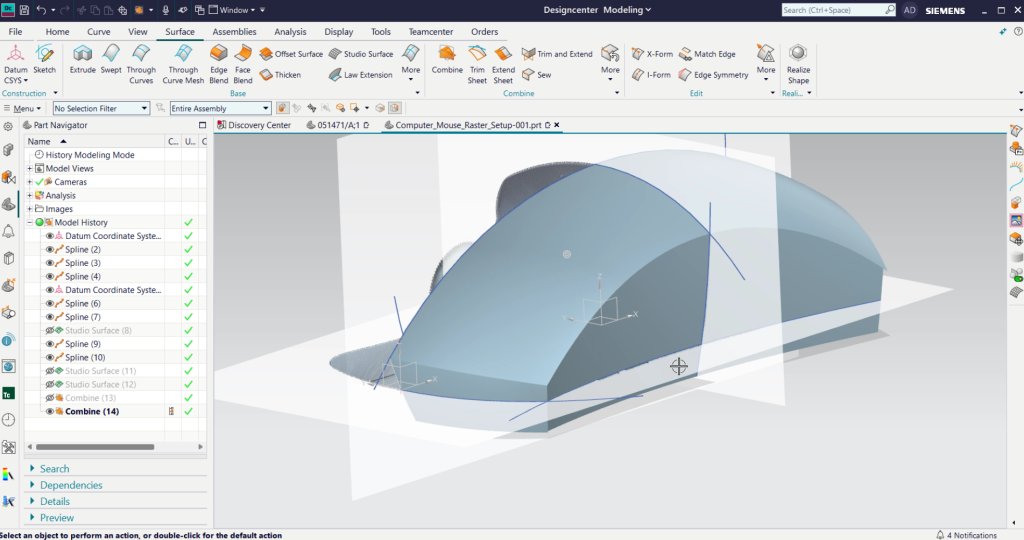
- Combine: Once your surfaces are created, the Combine command helps you trim and merge them, creating a unified and clean body for your product. This is where those extended spline ends come in handy.
Summary of Industrial Styling & Design
Industrial Styling & Design in Designcenter gives designers and engineers a powerful, integrated path from initial concept to polished, production-ready surfaces all within the familiar environment. By combining intuitive freeform modeling tools, advanced surface quality analysis, and seamless integration with downstream engineering workflows, Industrial Styling & Design enables you to create beautiful, functional products faster, reduce design iterations, and bring better products to market with confidence.
Continue your journey with Designcenter
Watch the Designcenter Assemblies and Magnetic Snap Tips and Tricks Video here ▶️
Watch the Designcenter CFD Designer How To Video here ▶️
Take me to the Designcenter design blog 📚