Manage PLM files from your desktop with Teamcenter Drive

Product information is most valuable when people can easily access and work with it. But when we’re talking about PLM files, that convenience cannot come at the expense of the governance, permissions and controls that protect important product information.
Teamcenter Drive lets users access, edit, synchronize and manage PLM files directly from Windows Explorer and the desktop applications you already use while maintaining Teamcenter governance and permissions. You can protect important product information including CAD models, engineering documents and other PLM files, open them in their associated applications and save your changes while keeping the information connected to Teamcenter.
The result is a more natural way to work. Instead of treating PLM and the desktop as separate environments, Teamcenter Drive brings governed product information closer to the applications people use every day.
Watch the video below to see Teamcenter Drive in action and learn how you can access and edit managed files, synchronize changes, focus on the projects relevant to you and continue working offline.
How can you manage Teamcenter files from your desktop?
Teamcenter Drive creates a synchronized connection between your desktop and Teamcenter. Once it is running, your Teamcenter Home folder and selected projects become available through Windows Explorer.
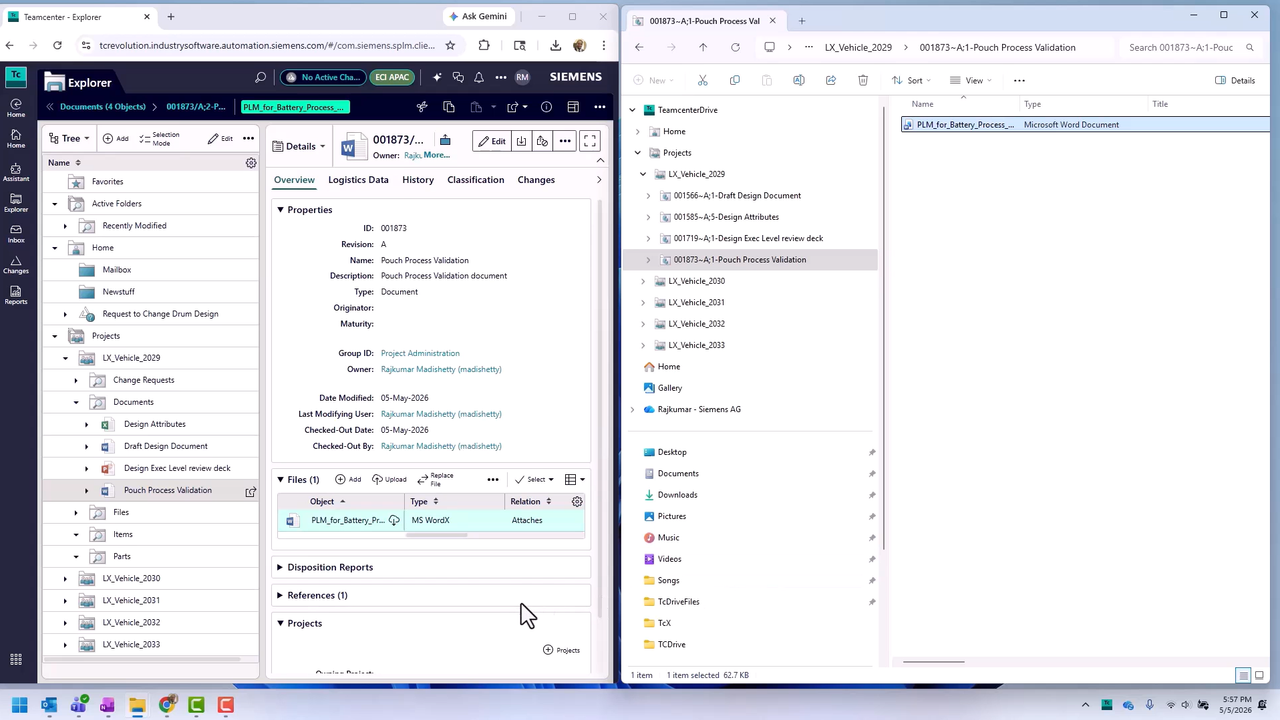
Users can manage PLM files from their desktop by accessing Teamcenter-managed content through Windows Explorer, editing files in native applications and synchronizing updates back to Teamcenter. From the desktop, you can:
- Open Teamcenter-managed files in their associated applications
- Edit and save files using familiar desktop tools
- Synchronize saved changes with Teamcenter
- Access selected projects and your Teamcenter Home folder
- View Teamcenter metadata in Windows Explorer
- Keep selected content available for offline work
- Navigate from Windows Explorer to the corresponding object in Active Workspace
This gives users a familiar way to work with PLM files and other PLM-managed information without creating a separate, disconnected file environment.
Make everyday editing easier
For many users, one of the biggest challenges with PLM files is maintaining governance while still working in familiar desktop applications. Consider something as routine as editing a Microsoft Word document. The document may be managed in Teamcenter because it is part of a product or business process, but the person updating it still wants to work in Microsoft Word.
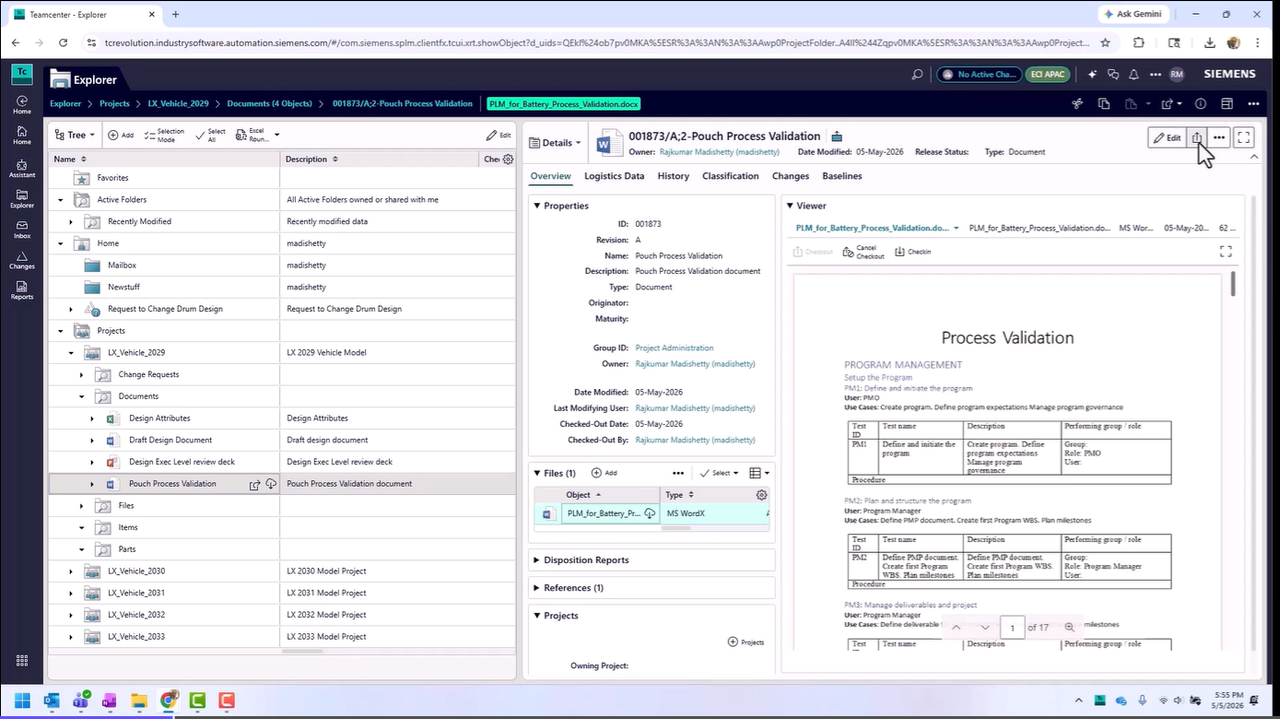
Teamcenter Drive connects those experiences. You can access the managed file, open it in its native desktop application and save it as you normally would. Teamcenter Drive then synchronizes the saved changes with Teamcenter.
The streamlined editing experience makes the connection even more direct. You can open a managed file from Teamcenter in its associated desktop application without first manually downloading and locating a separate copy.
This reduces the traditional cycle of downloading a file, finding the downloaded copy, opening and editing it, saving the update, and then replacing or uploading it again. The same approach applies to CAD files, specifications, requirements documents and other PLM files. Reducing these manual steps makes working with Teamcenter-managed files a more natural part of everyday work.
Work conveniently while keeping product information connected
Working with PLM files from your desktop gives you the familiarity of everyday applications while keeping important product information connected to Teamcenter.
Teamcenter Drive helps maintain the permissions, traceability and product context associated with managed files as you work. Instead of choosing between desktop convenience and PLM control, users can benefit from both as part of a more connected experience.
Useful Teamcenter information can also be viewed from Windows Explorer, while Teamcenter provides access to the broader product context when needed. This makes it easier to work naturally while staying connected to trusted, managed product information.
Focus on the product information that matters
Product development users may work across many projects, products and responsibilities. Teamcenter Drive lets you focus your desktop experience on the information relevant to your work. Large collections of PLM files can be filtered to show only the content relevant to a specific project or role.
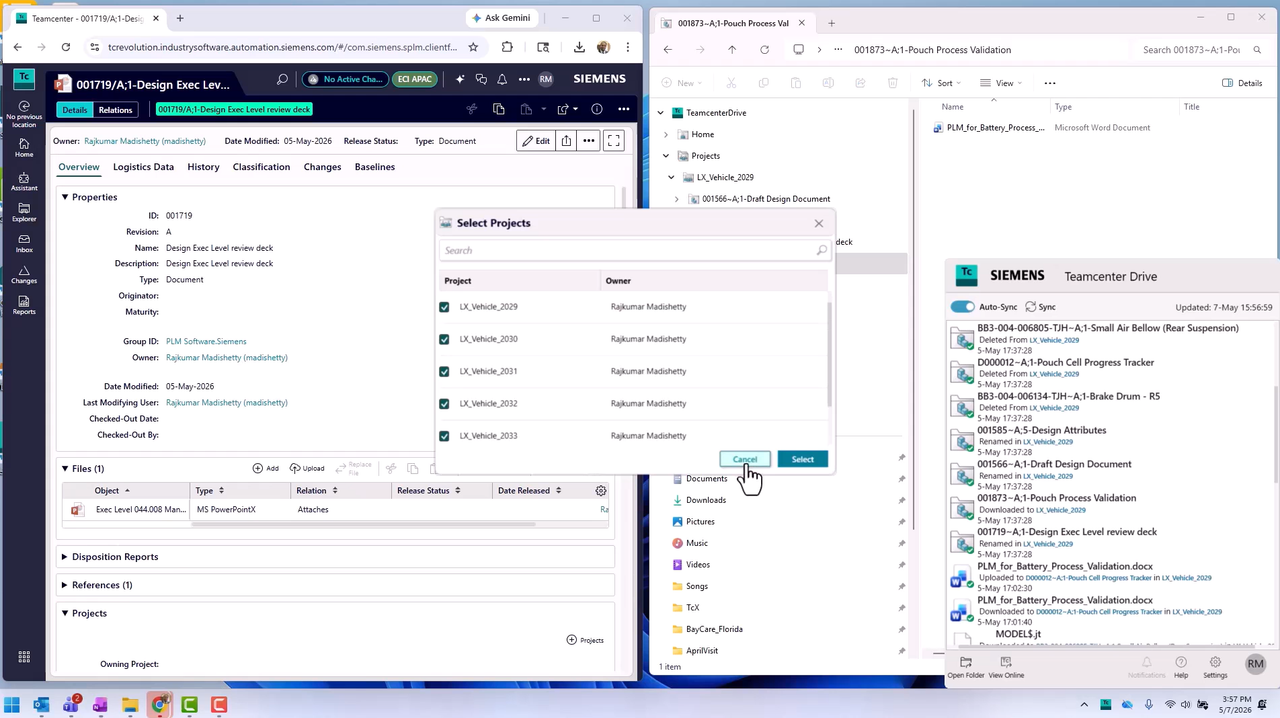
You can select which accessible Teamcenter projects to synchronize and which supported file types you want displayed. You can also change your active Teamcenter group or role when those options are available to your account.
Rather than bringing everything to the desktop, you can create a more focused connection to the projects and content you need.
This helps users avoid browsing unnecessary files while still maintaining access to the information required for their projects.
Access files without filling your local drive
Synchronizing a project does not mean every file immediately consumes local storage.
Teamcenter Drive initially displays files as lightweight placeholders in Windows Explorer. The complete file is downloaded when you open it. If you no longer need the local copy, Free up disk space returns it to placeholder status while keeping the file available in Teamcenter. Whether working with CAD models, documents or other PLM files, users download only the content they actively need.
This on-demand approach provides visibility into PLM files and project content while allowing local storage to be used for the files you are actively working with.
Keep working when you are offline
Product development does not always happen with continuous network connectivity. Teamcenter Drive lets you designate folder content to remain locally available and, once downloaded, access those PLM files offline.
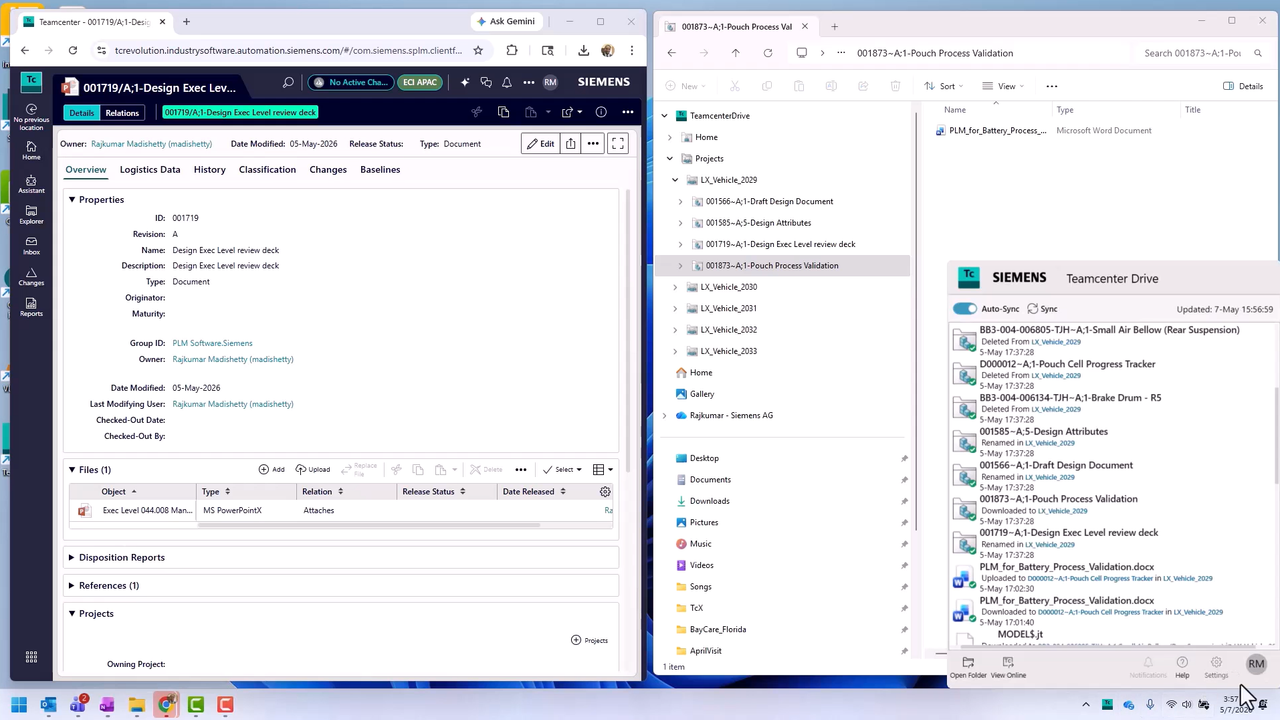
You can make important files available before disconnecting, continue working in their desktop applications and synchronize applicable changes with Teamcenter after connectivity is restored.
The benefit is continuity. Whether traveling, working remotely or temporarily disconnected, users can continue working with the files they need while maintaining a path back to the governed Teamcenter environment.
Bring PLM into the everyday flow of work
The value of Teamcenter Drive goes beyond making Teamcenter files visible in Windows Explorer. It helps reduce the boundary between the environment used to manage product information and the applications people use to create and update that information.
With Teamcenter Drive,
For organizations looking to simplify PLM file management without sacrificing governance, Teamcenter Drive provides a practical connection between Teamcenter and everyday desktop tools. You can manage Teamcenter files from your desktop, work in familiar applications, access relevant project content, continue working offline when needed and move easily between desktop file activities and the broader Teamcenter context.
The result is a simpler, more connected way to work with PLM files, combining the desktop convenience users expect with the governance, traceability and product context organizations rely on Teamcenter to provide
Frequently Asked Questions
What is Teamcenter Drive?
Teamcenter Drive provides access to Teamcenter-managed files through Windows Explorer, connecting your Teamcenter Home folder and selected projects with your desktop experience.
What are PLM files?
PLM files are files managed within a product lifecycle management system, including CAD models, documents, specifications, requirements and related product information. Teamcenter Drive helps users access and work with PLM files from Windows Explorer while maintaining connections to Teamcenter governance and product context.
How can I edit PLM files from my desktop?
Teamcenter Drive lets you access PLM files through Windows Explorer, open them in associated desktop applications and synchronize saved changes with Teamcenter.
Does Teamcenter Drive follow Teamcenter permissions?
Yes. Teamcenter Drive inherits Teamcenter access controls, helping keep desktop PLM file activities aligned with the permissions applied to managed information.
Can I work with Teamcenter files offline?
Yes. Selected content can be kept locally available so you can access downloaded files offline and synchronize applicable changes after reconnecting.
🧠 Make smarter decisions with AI-powered PLM
🚀 Start fast and grow with Teamcenter X
🚗 Take the Teamcenter X 30-day test drive
🌟 Learn more about Teamcenter solutions