Siemens Polarion for IBM Rational DOORS Classic user

Blog-Series: 3: How to use filter for Dashboards
1. General Introduction
In this blog-series we want to show you how to work with Siemens PolarionTM, especially if you have previously used (or currently use) IBM Rational DOORSTM Classic during your daily work.
The following content is intended to support you to use Siemens PolarionTM (get started easily and quickly) without giving up the basic functions and representations of IBM Rational DOORSTM Classic. For this purpose, examples are used to explain similarities between both tools and tool-related differences.
Did you know
To find out, how easy it is to migrate your existing data from IBM Rational DOORSTM Classic to Siemens PolarionTM, please have a look on our blog-series “How to Exchange Data from IBM Rational DOORSTM Classic to Siemens PolarionTM” by using the following links.
General Introduction
Part 1: The ReqIF-function
Part 2: The Polarion “Import-Function”
Part 3: The Polarion “Synchronizer-Function”
This blog-series shows Siemens PolarionTM key functionalities, which are part of the core product. You will see that Siemens PolarionTM (as a modern and open ALM-tool) offers many functionalities, which are not available in a pure requirement management tool.
2. Repetition
In the previous blog post (How to use filter), we have seen that within Siemens PolarionTM filter (queries) can be created easily within the LiveDoc, table or tree representation by using the visual query builder. Additionally (more than one query) can be saved. Queries can be saved for global, project or user purposes.
For more information’s see the blog post Siemens PolarionTM for IBM Rational DOORSTM Classic user, “Blog-Series 2: How to use filter” by using the following link:
3. Modify filters by “Convert to Text”:
Within PolarionTM, created filters (queries) can be modified very easily by using the visual query builder or the “Convert to Text” function where a previously created filter is converted into text. Picture 1 shows a created filter within the visual query builder functionality. Picture 2 shows the same filter, converted into text by using the “Convert to Text” function.

Picture 1: Filter within the visual query builder

Picture 2: Converted filter into text
A.) Visual query builder:
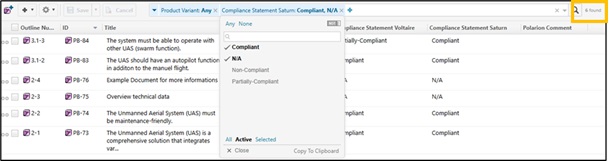
Select the field (attribute) which you want to modify and use the value (depending on the attribute settings, contents and properties) which should be added (or removed) for filtering. Picture 3 shows the current, selected filter with one selected Enum for “Compliance Statement Saturn” while Picture 4 shows the new modified filter, supplemented by a second Enum field. Of course, you can also add (or remove) another fields to your filter if this is necessary by use the “plus” or “x” symbol within the visual query builder.

Picture 3: Original filter setting
Picture 4: Modified filter setting
The result of both filters is different.
- The “current” filter displays: 2 work items
- The modified filter displays: 6 work items
B.) The Convert to Text function:
You can also modify filter (queries) within the “Convert to text” function. Here, (just as an example), we change the “AND” to “OR” from the previously used filter to get a filter with a new filter-condition (and of course, different results). Picture 5 shows the original previously used filter while Picture 6 shows the modified filter-condition. If necessary, the new/ modified filter can be saved.
Original filter:

Picture 5: Filter with “AND” condition.
Modified filter:

Picture 6: Filter with “OR” condition.
- No-Filter: Total amount of objects: 64
- Result AND-Filter: 2 objects
- Result OR-Filter: 42 objects
4. Use Copy and Paste function for filter reuse
To be more efficient, filter (queries) can be reused very easily by using copy & paste functionality (e.g. to filter LiveDocs, dashboards etc.). To do this, the copied filter must be inserted into the corresponding filter bar. The next section shows how easy it is to reuse a filter query e.g. from a table-view within a PolarionTM Live Report page.
5. How to filter dashboards
The following two examples show a simple table and pie-chart within a PolarionTM Live Report Page, named “UAS Report Page”. First, both charts are unfiltered.
A.) Table
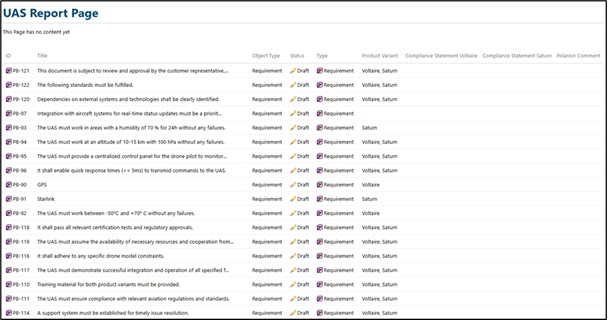
Picture 7: Unfiltered Live Report table (abstract).
Within the “Table – Block: Parameter settings”, a new query can be created (same procedure as shown before within e.g. a table-view, LiveDoc etc.) or a previously copied filter can be inserted.
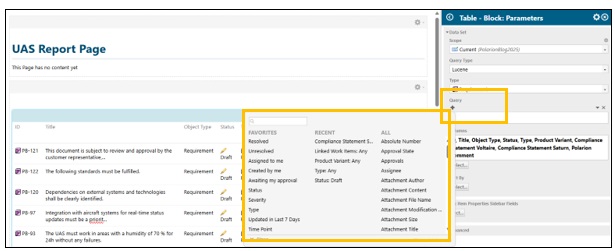
Picture 8: Query settings within Table-Block
Here we use the previous used, transformed into text and copied filter/ query (see Picture 2) and insert it into the query field. By using the “enter-button”, the new query gets activated and the table gets filtered. To complete the process, the modified dashboard must be saved. After this procedure you can go back to the Report page.
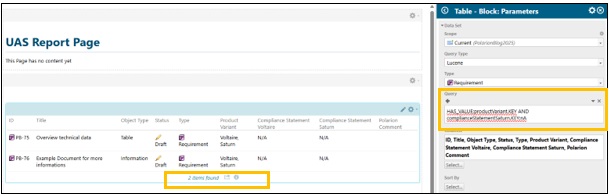
Picture 9: Inserted text query within Table-Block
B.) Pie-Chart
To filter the pie-chart we repeat the previous step. The following Picture 10 shows the pie-chart (with non-zero values) before the copied filter has been inserted. On the other hand, Picture 11 shows the pie chart with an activated filter.
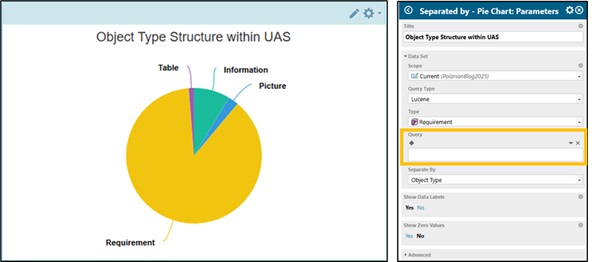
Picture 10: Pie-Chart without filter/ query
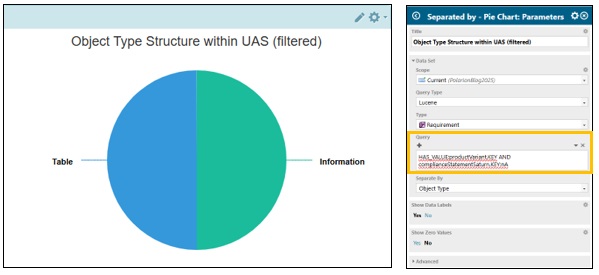
Picture 11: Pie-Chart with filter/ query
6. Summary
In the previous blog-series 2 we have seen, that PolarionTM offers the opportunity to create and manage filters very easy and quickly. The creation process follows always the same pattern. To be more efficient, filters created within the “visual query builder”, can be converted into text. Use the copy & paste function to insert a copied filter into another PolarionTM workspace (e.g. copied filter from LiveDoc into dashboard).
Briefly explained:
Keep the previous filter methods known from DOORSTM and extend them with additional functionality.
- Use copy & paste function to reuse filter in other workspaces (e.g. dashboards).
- Use filters within the PolarionTM LiveDoc, table-/ tree and dashboard surface.
- Filter (query) creation follows always the same pattern.
- Save different filters/ views on same data.
- Use filters on global, project or user level.
- Use filters/ views for data export functions (e.g. WORDTM, ExcelTM, ReqIF etc.)
- Use different editing modes.
7. Outlook
Did you know: With PolarionTM 2506, you can also create “advanced filters” to easily identify and filter a Work Item’s linked Work Items with Lucene queries. You want to know more about it? Please visit our PolarionTM ALM 2506 – What’s New and Noteworthy blog (link below).
You need more information’s? Please visit our websites:
PolarionTM product page
PolarionTM What’s new and noteworthy
Product Updates | Polarion (siemens.com)
PolarionTM Extensions
Polarion Extensions
Note
DOORSTM is a registered trademark of IBM.
WORDTM and ExcelTM are registered trademarks of Microsoft.