Designcenter NX | Tips & Tricks | Synchronous Modeling
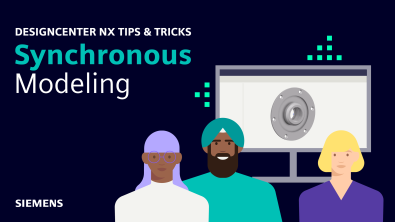
In our latest Designcenter™ NX™ software Tips and Tricks video, we explore how Synchronous Modeling empowers you to modify 3D geometries quickly and efficiently. This powerful set of commands makes it incredibly easy to implement fast design changes without needing to understand how a model was originally built, dramatically speeding up your productivity even in large assemblies.
Check out the video below or scroll down to learn more about how to leverage Synchronous Modeling commands to make fast, flexible design changes across your models and assemblies.
Move Face – Reposition Geometry with Ease
One of the main features of Designcenter NX Synchronous Modeling is the ability to directly manipulate your geometry and the Move Face command is a perfect example of this. Rather than revisiting your modeling history or rebuilding features, Move Face allows you to simply select any face and reposition it instantly. You can click and drag using the directional arrows to adjust the distance or angle interactively, or manually type in precise values directly in the command window.


The Move Face command gives you direct, intuitive control over your geometry no history required. This flexibility makes Move Face an ideal tool for rapid design iterations. Whether you need to shift a surface by a few millimeters or adjust the angle of a feature, the command adapts to your workflow, putting you in full control of your design without unnecessary complexity.
Resize Hole Command
When working with components that contain multiple holes, maintaining consistency is critical. The Resize Hole command within Synchronous Modeling allows users to quickly edit and resize hole features directly on the geometry. Once a hole face is selected, the command window presents the Face Finder tab, where the Find Clone option can be found. This powerful feature combined with the Resize Hole command allows you to select and edit multiple holes simultaneously saving time and ensuring consistency across your model.


This feature acts as a smart selection filter, automatically identifying and grouping identical holes so that you can edit all of them simultaneously in a single operation. Instead of modifying each hole individually, you can make a single change that propagates across all matching instances, ensuring uniformity and dramatically reducing the time spent on repetitive edits.
Replace Face – Achieving Symmetry and Clean Geometry
Designs often require a level of symmetry or uniformity that can be difficult to achieve through traditional modeling methods. The Synchronous Modeling Replace Face command addresses this by allowing users to replace selected faces with other selected faces, effectively combining or reshaping geometry to produce cleaner, more symmetrical models. The Replace Face command simplifies the process of achieving symmetrical and uniform geometry without the need to rebuild features from scratch.
This command is particularly valuable when working with imported geometry or models without feature history, where traditional symmetry tools may not be available. By directly replacing faces, you can quickly bring your model into alignment with your design intent, regardless of how it was originally constructed.
Delete Face
Sometimes the most effective design change is the removal of unnecessary geometry. The Synchronous Modeling Delete Face command allows users to remove selected faces from a component, resulting in a cleaner, smoother part. Rather than suppressing features or editing a history tree, you can simply select the faces you want to remove and delete them directly.
The Delete Face command streamlines your components by removing unwanted faces, producing smooth, clean geometry in just a few clicks.


This straightforward approach makes it easy to clean up imported models, remove outdated features, or simplify geometry for downstream processes all without the need to understand or navigate the original modeling history.
Resize Pattern – Adjust Patterns On the Fly
When working with patterned features such as bolt holes, the Resize Pattern command within Synchronous Modeling provides a fast and intuitive way to modify both the layout and count of a pattern. Accessible through the More drop-down in the Synchronous Modeling group, this command allows you to simply select one of the faces within the pattern, and Designcenter NX will automatically recognize and load the full pattern for editing.
The Resize Pattern command automatically detects and loads existing patterns, allowing you to adjust count and pitch distance quickly and efficiently.


From there, you can adjust key parameters such as the count and pitch distance, preview your changes using the Show Results option, and confirm or discard the update as needed. This level of flexibility ensures that pattern modifications can be made rapidly and accurately.
Radiate Face — Offset Geometry Along the Axis of Revolution
For components with rotational geometry, the Radiate Face command in Synchronous Modeling offers a specialized and highly effective way to offset faces. Unlike a standard offset that moves faces normal to their surface, Radiate Face offsets geometry normal to the axis of revolution making it the ideal tool for maintaining the integrity of cylindrical and revolved features during design changes. This feature allows for proper modeling of shrinkage and machining stock and allows for the press or interference fit geometries.
The Radiate Face command ensures that offsets on revolved geometry remain accurate and consistent by referencing the axis of revolution rather than the face normal.

By simply selecting the faces you want to adjust and specifying the desired offset distance, Designcenter NX handles the complexity of the offset calculation, ensuring that your geometry remains accurate and well-defined throughout the modification.
Summary of Synchronous Modeling
Synchronous Modeling in Designcenter NX represents a fundamentally different and more flexible approach to design modification. By working directly with geometry rather than feature history, these commands Move Face, Resize Hole, Replace Face, Delete Face, Resize Pattern, and Radiate Face collectively empower users to make fast, precise, and confident design changes across any model or assembly, regardless of its origin.
Whether you are refining an imported model, making rapid iterations on an existing design, or managing changes across a large assembly, Synchronous Modeling ensures that your workflow remains efficient, flexible, and fully in your control.
Continue your journey with Designcenter NX
Watch the Designcenter NX Inspector Tips and Tricks Video here ▶️
Watch the Designcenter NX Molded Part Designer Tips and Tricks Video here ▶️
Take me to the NX design blog 📚