Designcenter NX | How to series | Setup, deploy, and manage Designcenter X users
Welcome to our latest Designcenter NX™ software how to series video, where we’ll be taking a look at setting up, deploying, and managing Designcenter X users.
What is Designcenter X?
Designcenter X is a Siemens software solution developed to enhance digital engineering and collaboration throughout the lifecycle of your engineering projects. It’s a centralized cloud-based platform where project teams can efficiently manage, share and visualize engineering data from different disciplines.
The platform allows for seamless data exchange between a range of engineering and design tools. The result? Better co-ordination and a reduction in the potential for errors occurring. Features in Designcenter X such as version control, access management and real-time collaboration help teams stay aligned and maintain data consistency.
User management is crucial; it ensures that individuals have appropriate access to relevant data functions and tools within Designcenter X. Additionally, by assigning specific roles and permissions, user management helps maintain security and protect sensitive project information from unauthorized access, enabling you to work in a secure environment. You’ll also be able to streamline collaboration through team members only seeing and working on what they need, reducing the likelihood of workforce errors.
Enterprise Cloud Account (ECA) Setup
Typically, the first step involved is to configure an Enterprise Cloud Account; this is more of a specialized area and typically handled by IT administrators, so we’ll not focus on it too much in this blog. We will be covering this off in a later video, so be sure to check back to learn more.
An Enterprise Cloud account essentially serves as the central administrative account that you would use to manage users and permissions across Siemens cloud-based solutions.
After that stage, you’ll receive an email inviting users to sign into the Siemens Xcelerator Admin console.
IMPORTANT:
If you did not see your email, always check your spam or junk folder. If you still cannot see the email in these inboxes, make sure to contact your administrator to explore other options.
Siemens Xcelerator Admin Console

We’ve taken a look at the ECA setup; now let’s focus on the Siemens Xcelerator Admin Console. The admin console is crucial; it’s where you’ll be able to mange user access roles and permissions across Siemens Cloud Solutions, including Designcenter X. A centralized dashboard streamlines your administrative tasks, helping teams to maintain the strongest security protocols, ensuring users only have access to the resources they need.
Additionally, the admin console simplifies on-boarding, role changes and user removals. As a result, it’s much easier for you to scale and adapt as project requirements shift. Administrators can quickly address access issues, ensuring organizational compliance and smoother project workflows.
We’ve focused on creating a layout for you that is designed for clarity and ease of use. The main dashboard displays key metrics, such as active users’ tokens and users accessing via the server. Navigation options on the left enable quick access to admin management tokens, audit logging and group management.
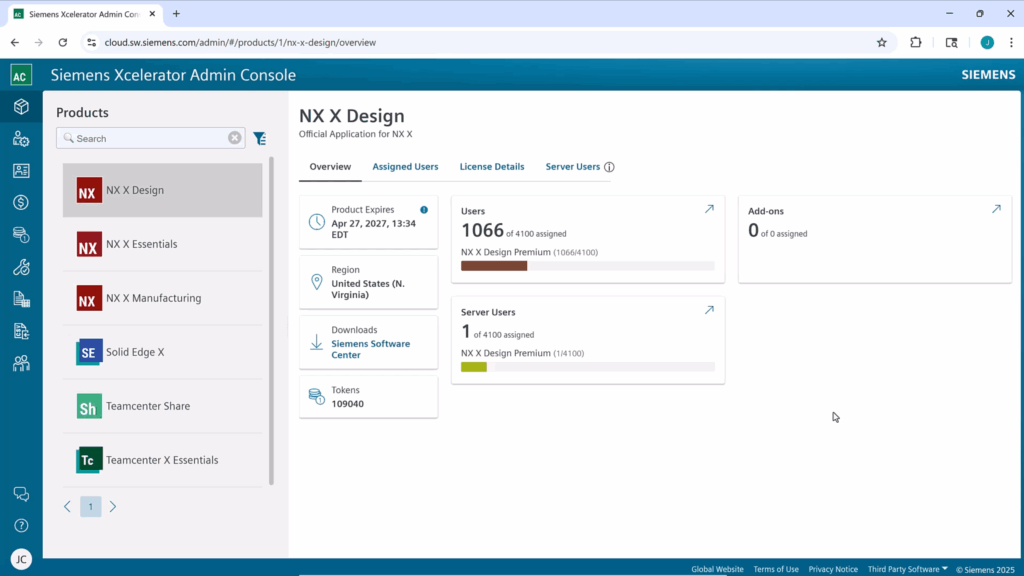
Managing user access is simple; simply navigate to the Assigned Users tab. This tab provides an easy to read list of all users that have access to your organizations’ Enterprise Cloud account, along with their roles and level of privilege.
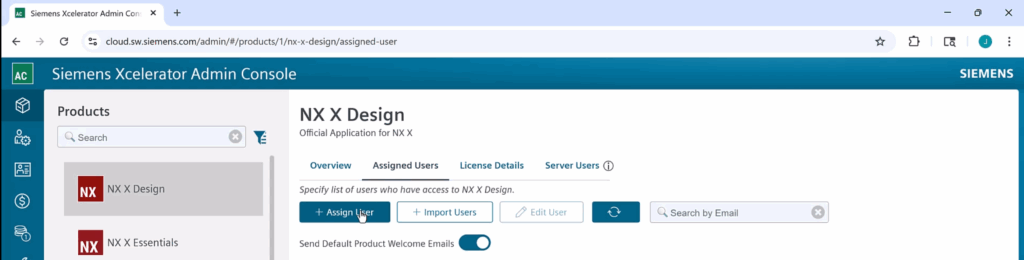
Adding new users has never been easier; simply click the Assign user button, and you’ll be able to enter the users email address, as well as selecting their appropriate role or group. Once a new user has been added, you’ll be able to see their status in the list. (It will typically change from pending to active once they have accepted the invitation.)
All users will be visible within the Assigned Users tab in a simplified list. You’ll be able to make quick changes to roles and privileges for existing users at any time, giving you the flexibility you need when project scope changes. What’s more, specific roles can be assigned to users, giving you complete control over granting application owner privileges to certain members.
Tokens
Tokens are another important tool that you can use to implement unrivaled levels of flexibility into your day-to-day workflows. Tokens are essentially digital credits that can used across various Siemens cloud applications, including Designcenter X. There’s a massive difference between tokens and traditional licenses; tokens let you grant task specific access, making it much easier to adapt to changing project needs and save on licensing costs
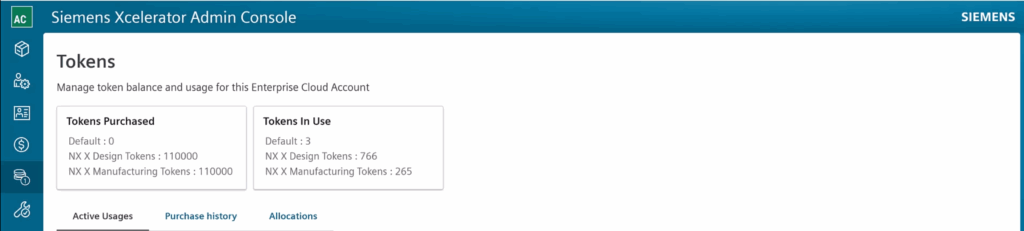
The dashboard under the tokens tab quickly shows how the total number of tokens available, how many are assigned, and which applications they are being used for. Ensuring you have a real-time view is key; it gives you the confidence to make informed decisions on resource distribution, ensuring you have enough tokens to get the job done.
IMPORTANT:
If needed, you can always review or adjust token allocations at anytime to match with specific project requirements
Reporting and auditing
As well as flexibility and a real-time view, tokens lay the foundation as an effective reporting and metrics tool. It’s an easy way to track which users hold tokens, whilst also monitoring total application usage too. Not to mention, the data can be generated through a range of reports for detailed auditing and planning purposes.
This transparency not only improves accountability, but also gives you key insights into forecasting future licensing needs, whilst simultaneously avoiding over provisioning or under utilization of tokens. Anytime a user’s needs shifts, or if your teams’ structure changes, tokens can be easily re-allocated, all with just a few clicks within the admin console. As a result, users have access to the right tools at the right time, whilst enabling you to stay agile in complex environments.
Creating a new report
The ability to audit log in the admin console provides an important record of administrative activities, system events, and configuration changes. What’s more, it can meticulously track who did what, when and where within the console. You’ll be able to include actions such as:
- User management
- Setting adjustments
- Security policy modifications
- Failed login attempts.
We’ve ensured you have everything at your disposal to create a comprehensive history of administrative operations to generate an audit log. Select the Create Report option from the Audit Logging menu option, where you can enter the report name, date range and description. Generating the report will produce a downloadable Excel file containing detailed records of all your administrative actions and system events for a defined period.
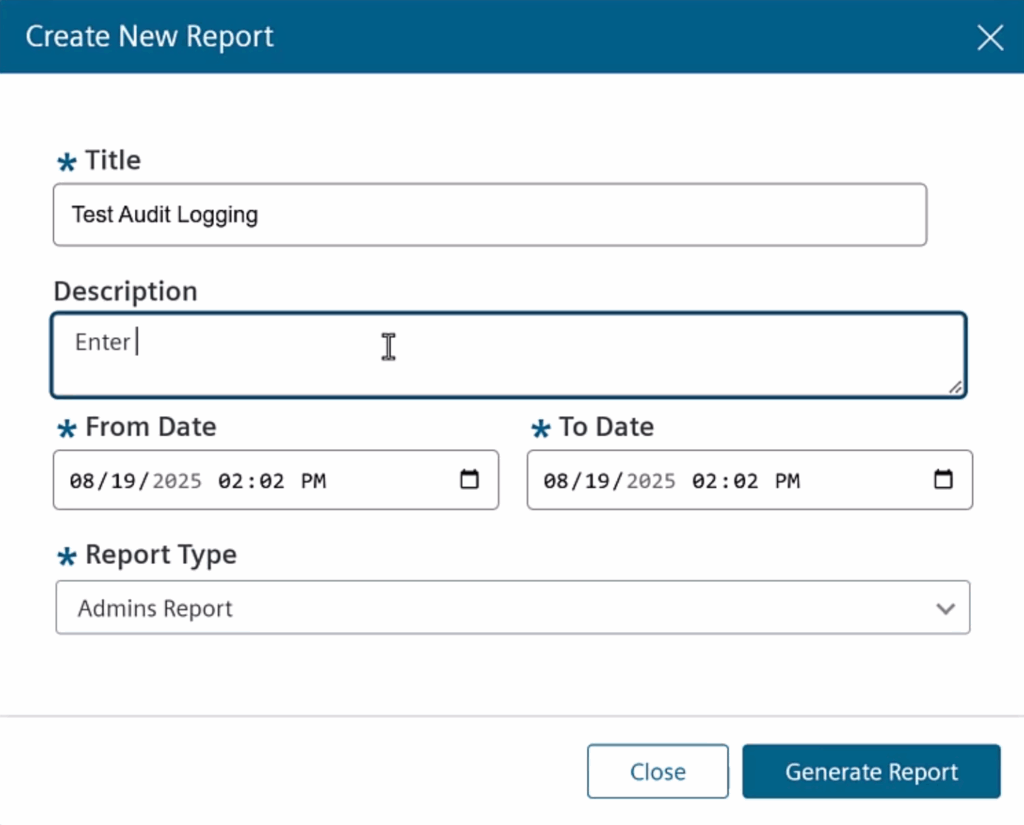
Audit reporting is essential for your security and compliance, giving you the power to detect unauthorized and meet regulatory environments. What’s more, identifying necessary troubleshooting activities is streamlined, allowing you to quickly rectify changes that could cause system issues. Additionally, audit reporting via the admin console promotes accountability, ensuring responsible management activities are deployed across your organization.
Siemens Software Center (SSC)
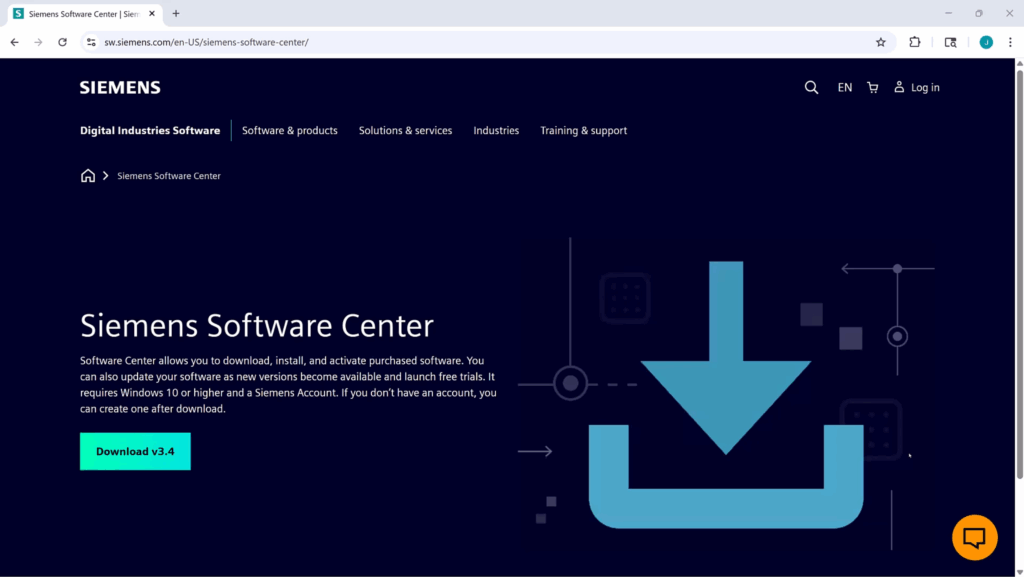
If the steps have all been completed, we’re ready to kick off the download for Designcenter X through Siemens Software Center. Any purchased software can be downloaded, activated and installed through the software center, whilst software updates can also be downloaded too.
Selecting the Download v3.4 option will give you an executable file which installs Siemens Software Center, followed by a prompt to sign in using your Siemens credentials. With SSC installed, from here you can begin the process of installing Designcenter X. Check the version that you want to install to your machine; we always recommend installing the latest release version where possible, ensuring you have access to the newest features and security updates. Make any changes you need to in terms of specifying a folder location, and kick off the installation.
If the installation was completed correctly, you’ll see a Designcenter NX managed mode icon on your desktop. Double clicking the icon will load up Designcenter. The next step is incredibly important; a window will open allowing Teamcenter® software desktop clients to share a single sign-on session with Teamcenter browser clients. This window always needs to be left open in the background.
Verifying installation
It’s always good practice to ensure the installation has been completed effectively, and we can do this in a couple of ways. Firstly, seeing your initials in the upper right hand of your screen indicates that you are working in Designcenter X; hovering over this icon will show your full name and email address.
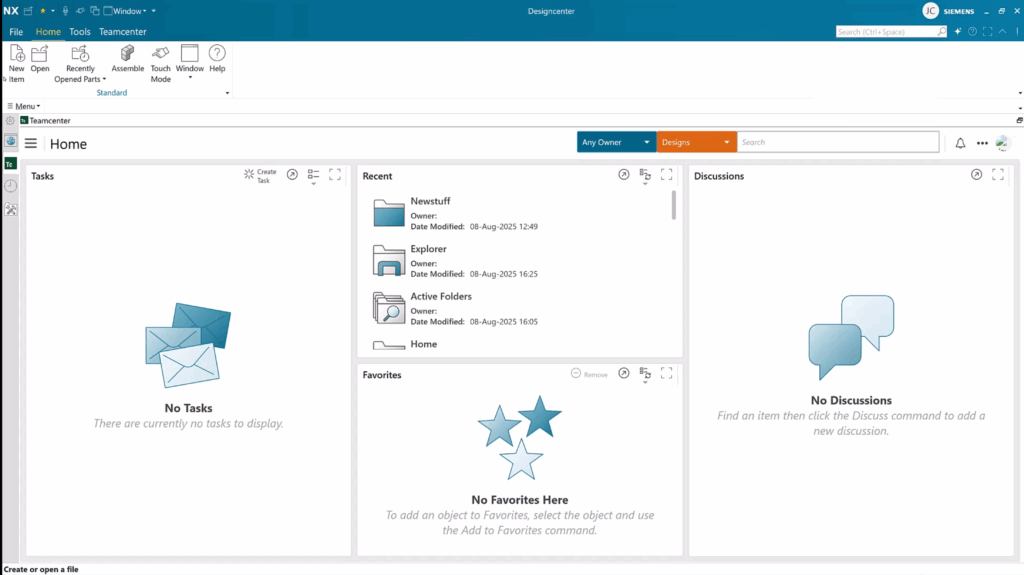
You can also verify the version that you are working in. To do this, select File > Help > About NX, and you will see your version information; it’s as simple as that! What’s more, since you’ll be working in a managed environment, it’s easy to access any data set that your team has uploaded to Teamcenter.
Continue your journey with Designcenter NX
Our cloud strategy is geared to removing as many barriers for you as possible; Your installation journey, starting from the Siemens Xcelerator Admin Console all the way through to Designcenter X has been simplified for usability, ensuring you can spend more time on refining concepts and collaborating with teams.
If you would like to learn more, be sure to continue your journey with Designcenter NX by checking out our supplementary content below.
Watch the full video here