How to Upload and Manage CAD Data in Teamcenter with NX

In our latest Designcenter NX™ Tips and Tricks video, we show how to upload CAD data into Teamcenter Active Workspace — ensuring your parts and assemblies are properly managed for collaboration and design integrity. This essential process maintains design integrity and streamlines collaboration workflows. By correctly storing, managing, and accessing your design data, you help your team work efficiently. We’ll demonstrate how to upload single unmanaged parts by assigning proper IDs, names, and revisions. Then, we’ll progress to handling complex assemblies using the Import Assembly tool to preserve component relationships. You’ll also learn to validate Teamcenter information, utilize secondary attributes, and verify your uploads, ensuring you secure, organize, and access your design data effectively.
Check out the video below or scroll down to learn more about Data Upload.
Why CAD Data Upload Matters in Teamcenter
Data upload to Teamcenter is fundamental because it directly impacts design integrity and collaboration across your organization. When you properly upload your Designcenter data, you ensure that all design files, whether single parts or complex assemblies, are centrally stored and managed. This prevents data loss, maintains a single source of truth for all design iterations, and eliminates inconsistencies that can arise from working with local, unmanaged files.
Beyond integrity, effective data upload streamlines your team’s workflow and enhances efficiency. Teamcenter provides robust version control, allowing you to track every change, revert to previous states if needed, and manage revisions systematically. This structured approach to data management reduces errors, accelerates design cycles, and ensures everyone works with the most current and approved designs, saving valuable time and resources.
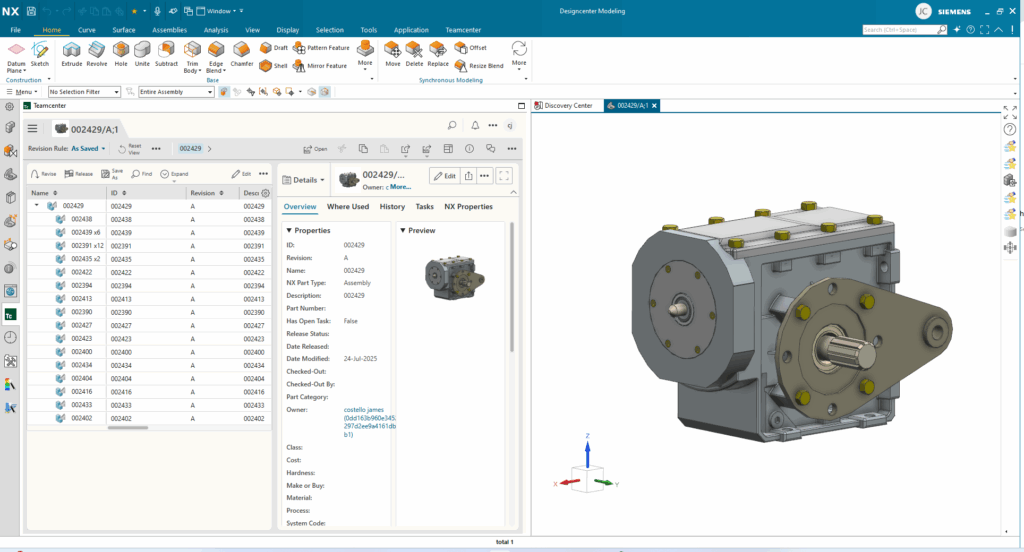
Ultimately, proper data upload makes your design information accessible and actionable for the entire team. It enables seamless sharing, facilitates concurrent engineering, and supports downstream processes like manufacturing and analysis. By ensuring your data is correctly stored, searchable, and linked within Teamcenter, you empower your colleagues to find what they need quickly, collaborate effectively, and contribute to successful project outcomes.
Uploading Single CAD Parts into Teamcenter
Uploading single, unmanaged parts to Teamcenter is the foundational step in establishing a robust data management system. Initially, these parts exist only on your local system or network drive, lacking the crucial Teamcenter ID and revision information. Bringing these .prt files into a managed environment ensures they are properly tracked and secured. You can initiate this process either by using “Save As” within your Designcenter N software or by selecting “Assign Teamcenter ID to unmanaged parts,” both leading to the same critical setup window.
Once in the setup window, you’ll focus on assigning essential metadata: the unique ID, a descriptive Name, and the initial Revision. While the ID follows your company’s naming conventions, the Revision typically starts with ‘A’ or ‘1’ and progresses with each design iteration, providing a clear history. You can also specify the Item Type, though CAD Design Item Type is common for parts. To further enhance organization, you have the option to save your part to existing projects and designate a specific folder within Teamcenter, even maintaining your original local folder structure if desired. Completing these steps ensures your part is correctly stored, easily discoverable, and ready for collaborative workflows.

Managing Assemblies with Teamcenter Import Assembly Tool
Uploading assemblies to Teamcenter requires a specialized approach compared to single parts, as it involves maintaining the complex relationships between components. The Import Assembly into Teamcenter tool streamlines this process, allowing you to bring in entire structures while preserving their hierarchy and connections. When you select your assembly from its local save point, the system intelligently recognizes existing components. You’ll then have the option to reuse these existing items or create new instances, a crucial decision for managing revision control and ensuring data integrity within Teamcenter.
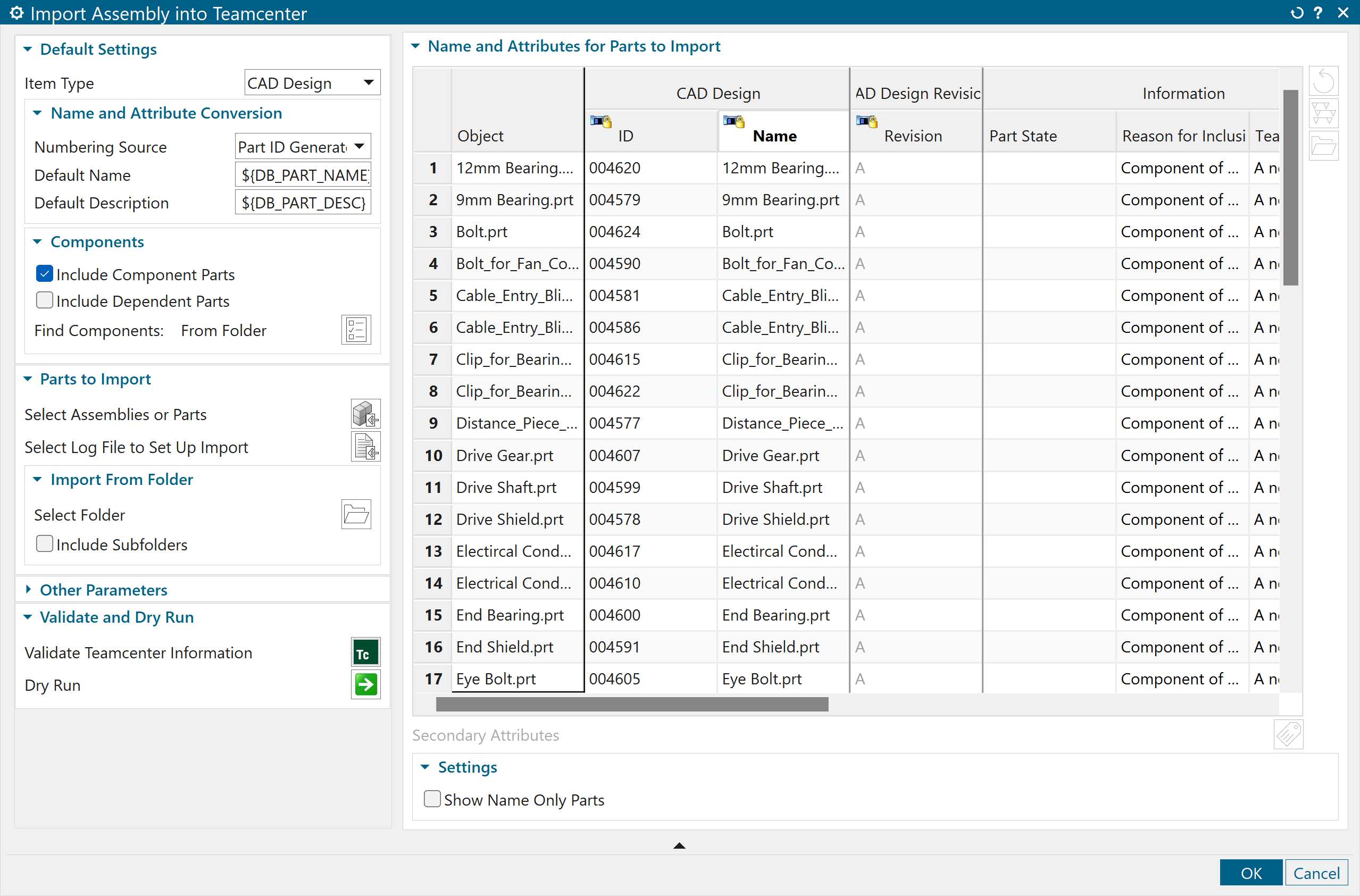
After the initial selection, the Import Assembly tool presents a comprehensive list of all components within your assembly, detailing their IDs, names, and revision letters. It’s vital to validate Teamcenter information at this stage to ensure proper designation and tracking. You can also leverage the “existing part action” column to overwrite or utilize existing parts already in Teamcenter. Furthermore, the secondary attributes section allows you to enrich your data with important metadata like material properties or design specifications, enhancing searchability and documentation. Finally, you can assign the assembly to existing projects for better organization before completing the upload and verifying its structure within Teamcenter’s search tool.This ensures CAD assembly data management in Teamcenter stays accurate, traceable, and ready for downstream processes.
Continue Your Journey with Designcenter NX
Watch the General Selection Filtering UI Tips and Tricks Video here ▶️
Watch the Sketch and Profile Creation Tips and Tricks Video here ▶️
Take me to the NX design blog 📚