Designcenter | Tips and Tricks | Working offline in Managed Mode
Our Tips and Tricks blog series is back, focusing on all things new in the June 2026 release of Designcenter™ software. In this latest blog, we take a look at a brand new Working Offline mode when working in a Managed Mode environment.
Modern engineering teams need the flexibility to work wherever projects take them. Whether collaborating on the shop floor, visiting customer sites, or travelling between locations, designers cannot always rely on a constant internet connection. We’ve all experienced intermittent connection problems, or connection dropping out completely.
That’s why we have leveraged Designcenter™ X software, powered by Teamcenter® X software to create a managed environment that helps teams maintain data integrity, streamline collaboration and establish a single source of truth. This is all whilst supporting the most productive engineering workflows.
The June 2026 release of Designcenter introduces new Work Offline capabilities that enables you to securely check out managed data, continue working while disconnected and seamlessly synchronize changes when connectivity is restored.
Why working offline matters
Engineering work does not always happen in ideal conditions. You may need to continue your work while travelling for an event. Maybe important work is needed when collaborating away from your desk. More importantly, you may be operating in an area with inconsistent network connectivity.
The brand new Work Offline functionality is designed to reduce downtime in those moments by allowing you to check out the relevant data, disconnect, make changes and later synchronize your changes. The result? A more flexible workflow that helps teams keep projects moving, even when connectivity is limited.
Staying productive beyond the office network
The need to be productive extends far beyond a traditional office environment. Design reviews can take place on the shop floor, or you may simply be travelling between multiple locations. Work Offline enables you to continue working within a managed environment even when access to Teamcenter is temporarily unavailable.
Rather than waiting for your connectivity to return, you can take the design data you need and continue making progress on active projects. It’s an approach that reduces downtime, whilst also ensuring teams can continue working within esetablished data management processes.
Creating an offline workspace
Everything begins with the Teamcenter tab; select the New Workspace option to begin building your offline space. When creating your workspace, you’ll need to select the parts and assemblies that are imperative for your offline work sessions.
All associated content, including geometry, drawings, attributes and model-based definition data can be included as part of your offline package. At this stage, you’ll see that any parts already checked out by other team members will be marked as not modifiable.
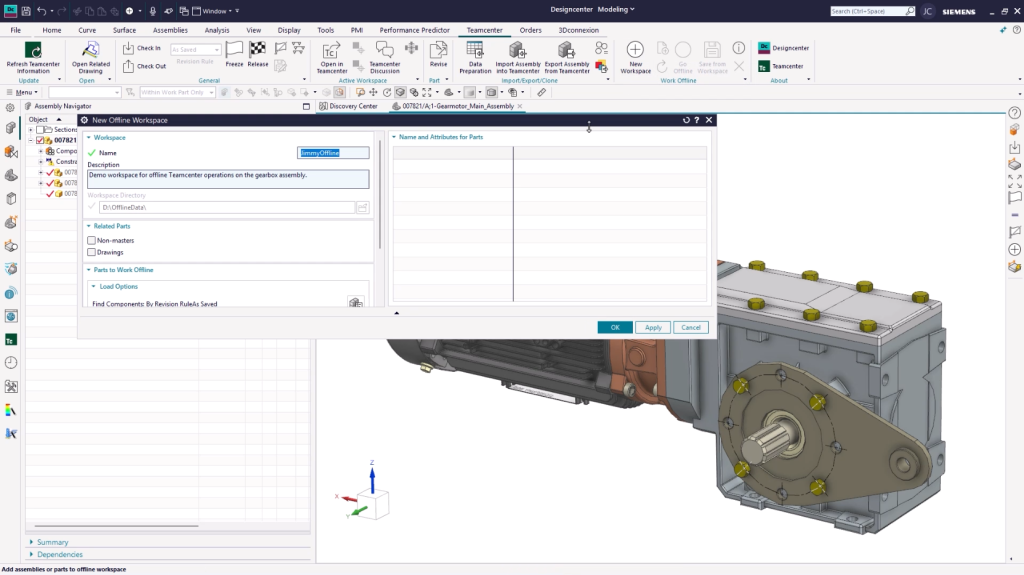
This approach gives you complete control over what information is available during offline work, while ensuring the required engineering context remains accessible. At the same time, managed checkout processes enable complete visibility across the team by clearly indicating which components are being worked on.
Top Tip
We recommend checking out only the parts you need. This will ensure your team members can still work on and modify other parts of the same assembly
Working offline with managed data
With your offline workspace created, Designcenter will automatically download the required data locally, so that you’re ready to start working offline. At this stage, make sure to restart your session so that you can access your offline session. Selecting the Go Offline option will automatically reboot Designcenter and setup your offline workspace.
You’re now ready to continue working in Designcenter, whether that be on site with customers or travelling to another site; all parts can be modified, assemblies can be updated, and drawings can be created or edited without accessing Teamcenter.
Your Offline session still maintains the same look, feel and experience as a typical session, ensuring less time is required on workplace setup, and more time dedicated to key design decisions. The only real difference is that commands under the Teamcenter tab have disappeared. All previous work spaces that have been created can also be easily accessed using the Open Workspace command.
Switching back to online mode
Let’s say you’ve finalized your offline changes. Or, your commute is finished, and you’ve made it to the office where there is a stable connection. It is always best practice to go back online, and that’s an easy step. All you need to do is select the Go Online option from the Teamcenter tab from within your Designcenter session. Designcenter will reboot with the restored Managed Mode functionality.
Utilize the Save from Workspace notification to ensure your data is properly uploaded and synchronized in Teamcenter. This will ensure all changes are available to the rest of the team, maintaining the single source of truth for your data. Finally, checking parts back in is also important; this will allow team members to pick up where you have left off, pushing the design process forward.
Top Tip
Where possible, delete your offline workspaces when you are finished. This will help free up local storage space, helping you maintain a seamless experience when using Designcenter. It will also prevent accidental modifications to outdated local versions, ensuring you’re always working on the latest dataset.
Continue your journey with Designcenter
These enhancements to Designcenter help make disconnected workflows more practical for day-to-day engineering activities. Work Offline mode extends the benefits of managed mode environments beyond the office network. What’s more, design work can continue moving forward, with traceability, collaboration and data integrity maintained throughout.
Check out the following content below to learn more about Working offline in Designcenter.
Take me to the Designcenter blog 📚