Designcenter NX | Tips & Tricks | Getting started with DFM Advisor

Welcome to our new NX™ software Tips and Tricks video, where we explore Design for Manufacturing (DFM) Advisor and the advantages it provides towards manufacturing checks early in the design process. DFM Advisor can analyze your data, identify potential challenges and provide actionable feedback, thus improving your overall design workflow. At its core, it’s all about designing products in a way that makes them easier, more efficient, and more cost effective to produce. It provides real-time feedback and insights into how your design choices will impact the manufacturing process, effectively bridging the gap between design, intent, and manufacturing reality.
This video showcases how DFM Advisor brings manufacturing intelligence directly into the design process, offering significant benefits by improving how products are developed. This includes early problem detection or potential issues like thin walls, sharp corners. Undercuts or difficult to machine features are flagged at the design stage, saving substantial time and resources that would otherwise be spent on rework and costly tooling modifications.
Check out the video below or scroll down to learn more about DFM Advisor.
Test Command
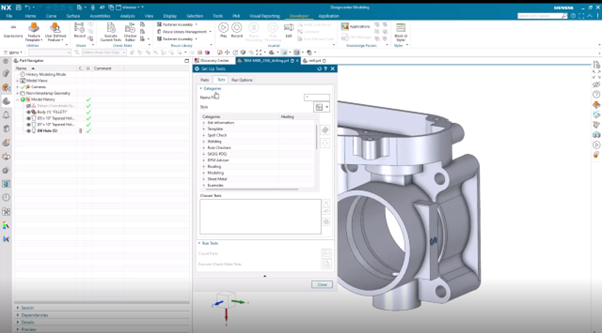
To start with, you can find all the checkers in Designcenter under the ‘developer tab’ within the Checkmate group. From there, simply select the setup test command to start customizing your testing. You will notice various categories available, but in this specific instance, we’ll focus on the DFM Advisor offerings. Our primary focus will be on drilling as it’s our chosen method for creating specific features in this component. Once you’ve selected the checks you’re interested in, use the arrow on the right side of the window to add them to your chosen tests.
Top Tip: For any tests you might be confused about; highlight the checker and then select the book icon. This action opens the test documentation where you’ll find a short description, helpful images, and the precise logic the checker employs to recognize potential flaws in your design.
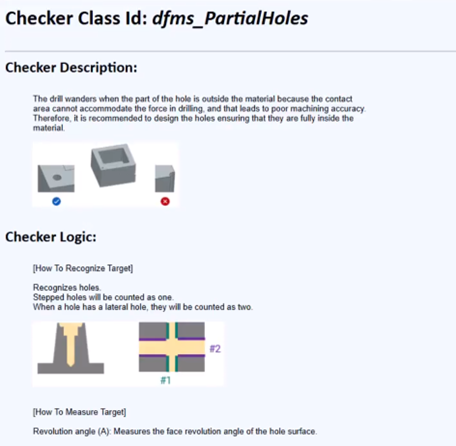
Once you’ve selected all your appropriate tests, you can initiate your checks by choosing ‘execute checkmate tests’.
Getting ready for manufacturing
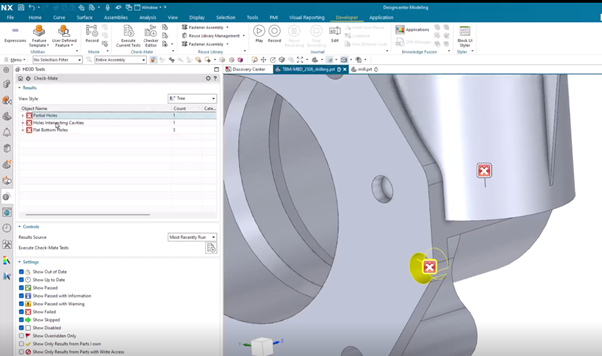
Once the tests have been completed, it’s time to assess if your part is truly ready for manufacturing. On the left side of your screen, the Checkmate results are clearly displayed. A red ‘X’ signifies a failed test, while a green check mark indicates a pass. To quickly pinpoint issues, simply select any test from the navigator. This action will instantly highlight its corresponding error in the display window, making it effortless to evaluate the exact location of potential design flaws.
For tests with multiple errors, you can easily expand them for a more detailed analysis. Should you encounter a particularly challenging to locate error, a right click on that specific test will allow you to use the focus view on tag option, providing a closeup visual of the component.
This entire process is designed to streamline your review, significantly improving efficiency in simplifying the task of understanding your test results.
Milling tests
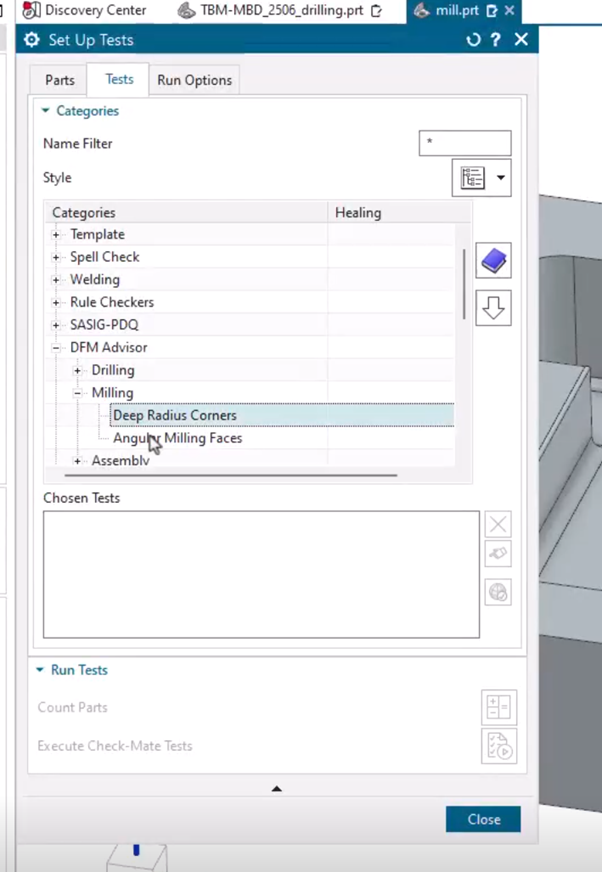
Now let’s shift our focus to a different component and explore the milling tests available within DFM advisor. To begin, you’ll want to clear out any previous selections by highlighting your old tests and clicking the ‘X’ on the right side of the window. With a clean slate, you can then select the new milling checkers you wish to perform. As you add these, you’ll find valuable options to customize them. For instance, some tests require a specific directional vector, which you can easily modify. Others might involve setting precise pass or fail values, making it highly beneficial to explore these customization options, especially if your company has specific manufacturing best practices to adhere to.
Once these customized milling tests are run, you’ll again observe that some checkers might pass while others indicate a failure. This immediate feedback is incredibly valuable. Being able to identifying and rectifying such design flaws early in the process, even before manufacturing begins, can significantly save critical time and money, truly underscoring the power of proactive design validation.
Continue your journey with Designcenter NX